Clients
Company Dashboard6 min read6 sections
On this page6 sections
Clients are the companies and people you do business with — the customers your projects, opportunities, statements of work, and invoices all hang off. This page is the single record of who a client is, who to talk to there, and everything you're delivering or billing them. Sales, delivery, and finance teams all read from it.
Read this first: In ApixONN a client is created once and then referenced everywhere — every project, opportunity, SOW, and invoice points back to a client. Get the client record right and the rest of the system lines up behind it.
#The Clients list
Where to find it: Sidebar → Clients
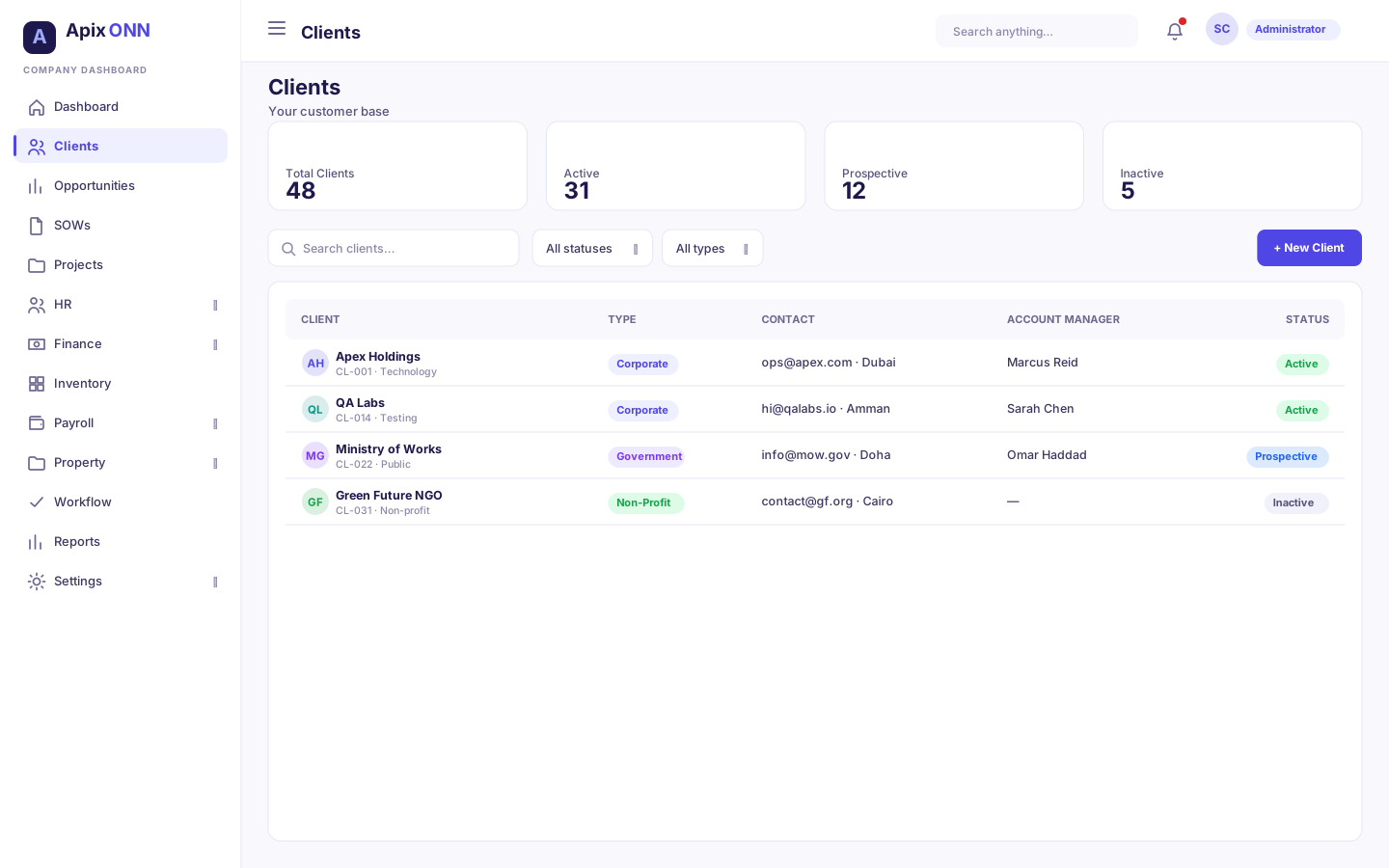
The list is your whole customer base on one screen, with four count cards across the top and a searchable, filterable table below.
#What you can do here
- See how many clients you have, split by status — Total Clients, Active Clients, Prospective, and Inactive — in the four cards at the top.
- Search by name, client code, email, or industry.
- Filter by Status (All / Active / Prospective / Inactive / Closed) and Type (All / Corporate / Government / Individual / Non-Profit).
- View a client to open its full profile.
- Create a new client with New Client.
- Edit a client's details.
- Delete a client you no longer need.
#Reading the table
| Column | What it shows |
|---|---|
| Client | The client's name, with its client code and industry beneath. |
| Type | A badge — Corporate, Government, Individual, or Non-Profit. |
| Contact | Email, phone, and city / country (a dash if none is on file). |
| Account Manager | The employee who owns the relationship (or a dash). |
| Status | A badge — Active, Prospective, Inactive, or Archived. |
| Actions | View (open the profile), Edit, and Delete. |
Note: The search and filters work on the clients already loaded on the page — there's no separate paging or column sorting. On a very large client base, use the search box to narrow down rather than scrolling.
Note: In the Status filter the last option reads Closed, but it matches clients whose status is Archived — the same thing, just worded differently in the dropdown.
#The client profile
Where to find it: Clients → View on any row
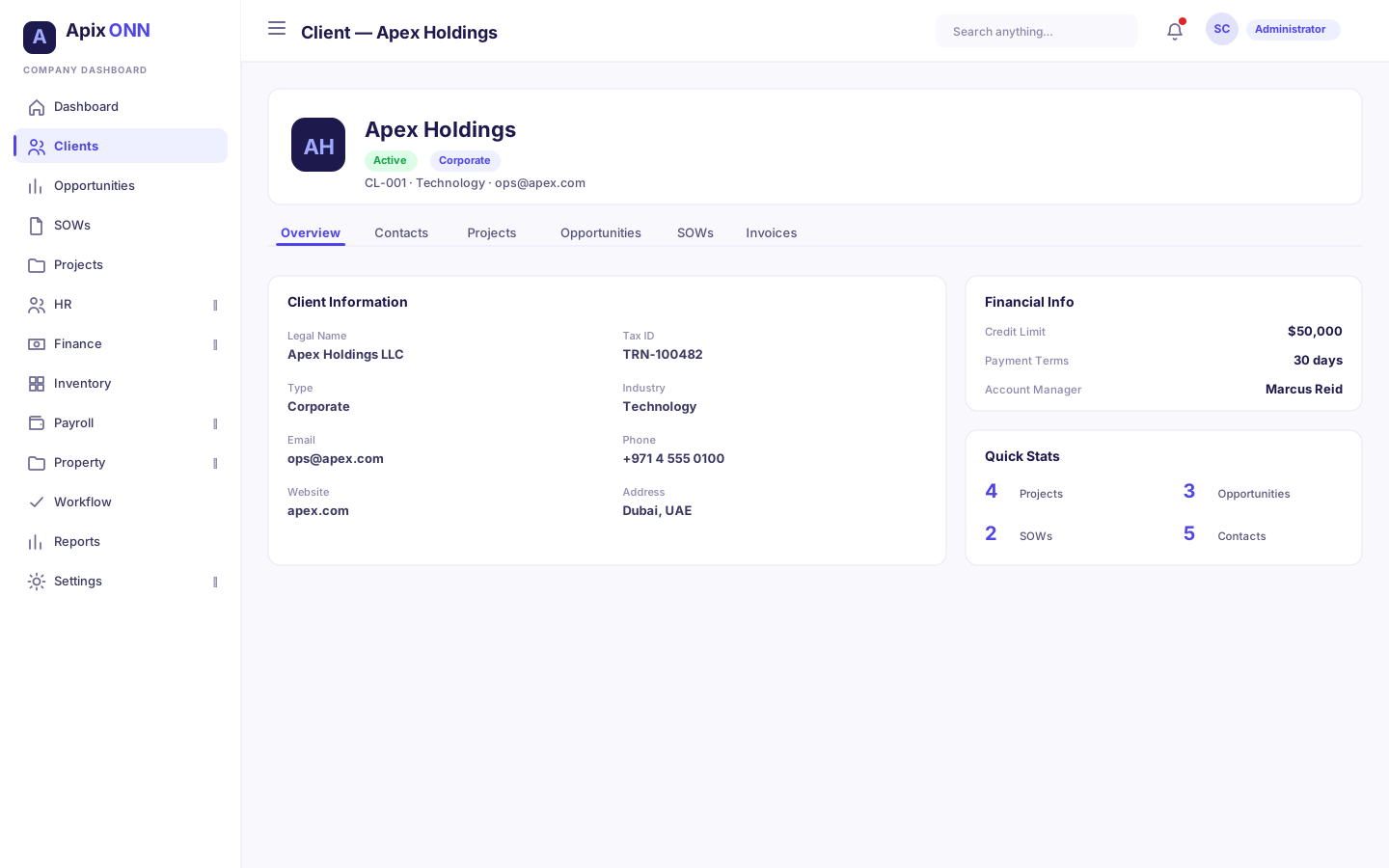
The profile is a client's home page. The header shows their name, status, client code, and type, with an Edit Client button; everything else is organised into six tabs, each showing a live count where relevant.
| Tab | What's in it |
|---|---|
| Overview | The client's core details and a financial snapshot. |
| Contacts | The people you deal with at this client. |
| Projects | Every project for this client (read-only list). |
| Opportunities | The client's sales pipeline (see the Opportunities page). |
| SOWs | Statements of work for this client (see the SOWs page). |
| Invoices | Invoices raised against this client (read-only list). |
#Overview tab
The Overview lays out who the client is and their commercial terms:
- Client Information — Legal Name, Tax ID, Type, Industry.
- Contact Details — Email, Phone, Website, and full Address.
- Notes — any free-text notes (shown only if there are some).
- Financial Info — Credit Limit and Payment Terms (in days).
- Account Manager — the employee who owns the account.
- Quick Stats — counts of Projects, Opportunities, SOWs, and Contacts.
Note: Credit limit and payment terms recorded here are informational — the number to reference when you invoice. Credit-limit enforcement happens in Finance when an invoice is sent (see Finance → Invoices).
#Contacts tab
The people you actually talk to at the client (headed Client Contacts). Each contact card shows their name, title, email, phone and mobile, and any of these badges: Primary (the main point of contact), Billing (where invoices go), or Inactive.
- Add a contact with Add Contact. First Name, Last Name, and Email are required; you can also add a Title, Phone, Mobile, and Notes, and tick Primary Contact, Billing Contact, or Active.
- Change a contact with Edit on its card, then Save Changes.
- Remove a contact with Delete on its card.
Tip: Mark one contact as Primary. When you record a signed SOW, the Signed by field is filled in with the client's primary contact.
#Projects, Invoices tabs (read-only)
These two tabs are windows into other modules, not editors:
- Projects lists the client's projects with status, start date, and budget; View opens the project in the Projects module. You don't create projects from here.
- Invoices lists invoices for the client with date, amount, and a paid / pending status. Invoices are raised and managed in Finance.
#Opportunities & SOWs tabs
You can work directly from these two tabs: Add Opportunity and New SOW both open a create form pre-linked to this client. On the Opportunities tab you can also move a deal to another stage. On the SOWs tab, each SOW has the same actions as on the SOWs page — Submit for approval, Send, Sign, Edit, and Delete, depending on its status. The full lifecycle for each lives on its own page — see Opportunities and SOWs.
#Creating a client
Where to find it: Clients → New Client
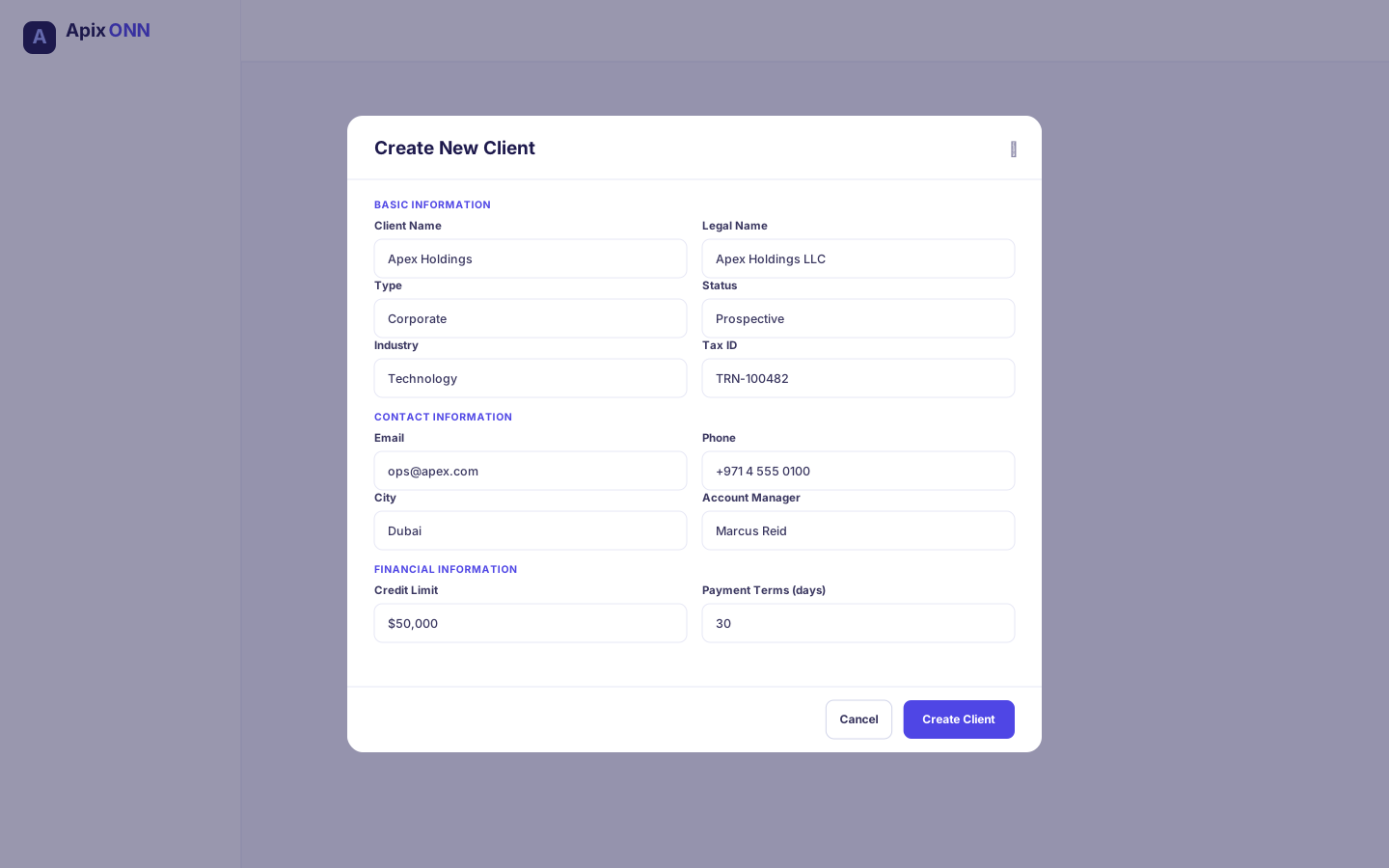
The Create New Client form is organised into three sections:
| Section | Fields |
|---|---|
| Basic Information | Client Name (required), Legal Name, Type (required), Status (required), Industry, Tax ID |
| Contact Information | Address, City, Country, Phone, Email, Website, Account Manager (search for the employee by name) |
| Financial Information | Credit Limit, Payment Terms (days, defaults to 30), Notes |
New clients default to the Prospective status. Only Client Name, Type, and Status are mandatory — fill in the rest as you learn it.
#How to edit a client
- Click Edit on the client's row in the list, or Edit Client on their profile.
- The Edit Client form has the same three sections as the create form. Change what you need.
- Click Save Changes.
Important: Delete is permanent and asks you to confirm first, so use it only for records created by mistake. To "close" a client, edit it and set the status to Inactive or Archived instead.
#All contacts (Clients → Contacts)
Where to find it: Sidebar → Clients → Contacts
The Client Contacts page lists everyone you deal with, across all your clients, in one table.
- Search by name, email, title, or client.
- Filter to All contacts, Primary contacts, Billing contacts, or Inactive.
- The table shows each contact's Name, Client (click it to open the client), Email, Phone, and Role badges (Primary, Billing, Inactive).
- Edit or Delete a contact from its row.
Note: To add a contact, open the client and use Add Contact on its Contacts tab. There's no Add button on this page, because every contact belongs to a client.
#Client types & statuses
Type describes what kind of organisation the client is:
| Type | Use it for |
|---|---|
| Corporate | Private companies and businesses. |
| Government | Public-sector bodies and agencies. |
| Individual | A person rather than an organisation. |
| Non-Profit | Charities, NGOs, and not-for-profits. |
Status describes where the relationship stands:
| Status | What it means |
|---|---|
| Prospective | A potential client you're pursuing but haven't won yet (the default for new records). |
| Active | A live client you're currently doing business with. |
| Inactive | A client you're not currently working with, kept for reference. |
| Archived | Closed out and filed away (shown as Closed in the list's status filter). |
#How Clients connect to the rest of ApixONN
The client record is the hub that ties commercial activity together:
- Opportunities — every opportunity belongs to a client; you can add one straight from the client's Opportunities tab.
- SOWs — statements of work are scoped to a client and can reference one of that client's opportunities.
- Projects — projects are linked to a client and surface on the client's Projects tab.
- Invoices & credit — invoices are raised against a client in Finance; the client's credit limit and payment terms travel with them.
- Account Manager — links the client to an employee from HR, so ownership of the relationship is clear.
Tip: Because so much references a client, create the client record first — before its first opportunity, SOW, or project — so everything that follows can point at it cleanly.