Workflow & Approvals
Many important actions in ApixONN — paying out a milestone, approving a big invoice, terminating a contract, running payroll, promoting an employee — don't take effect the moment you submit them. They go through an approval workflow first: one or more people review the request and either approve or reject it. This page explains how approvals work, where they live, who approves what, and how to act on them. It's the single most important page to read if you've ever submitted something and wondered "where did it go?"
Company Dashboard15 min read11 sections
On this page11 sections
- Why some actions need approval
- The Workflow Inbox — where approvals actually live
- The golden rule: you can only approve items assigned to you
- How to approve an item
- How to reject an item
- How to know an approval is waiting for you
- The big picture: what triggers approval, who approves, and where it goes
- What happens after the final approval
- Statuses
- Setting up approval chains (Settings → Workflows)
- Tips & FAQ
Read this first: The person who submits a request is almost never the person who approves it. That's by design (it's called separation of duties). Submitting starts the process; someone else finishes it.
#Why some actions need approval
Approvals exist so that no single person can move money, change someone's pay, or commit the company without a second set of eyes. This is a core financial and HR control.
When you submit an action that needs approval, ApixONN does three things automatically:
- Freezes the record in a "pending" state. Nothing happens yet — a payment isn't paid, a contract isn't ended, a leave isn't booked.
- Routes the request to the right approver, step by step, following the approval chain your administrator set up for that kind of request. A step can go to the requester's manager, to anyone with a role (such as Finance Manager), to a specific person, to the department head, or to the project's manager. See Setting up approval chains.
- Notifies that approver and drops the item into their Workflow Inbox.
Only after the last required approver says "yes" does the action actually take effect.
Note: Some low-risk actions have no workflow and take effect immediately (for example, invoices under a small threshold). The big table further down shows exactly which actions trigger a workflow and which don't.
#The Workflow Inbox — where approvals actually live
Where to find it: Sidebar → Workflow Inbox
This is the one place pending approvals appear. If an item is waiting for your decision, it's here — and nowhere else.
Important — three common places people look, and why they're wrong:
- Not on the record's own page. Opening the milestone, invoice, or leave request itself won't give you an Approve button. The record just shows its status as pending.
- Not the project's "Approval" tab. A project's Approval tab is only for approving the creation of a brand-new project. It does not show milestone, invoice, or any other approvals.
- Not the person who submitted it. The submitter sees the item marked "pending," but the Approve/Reject buttons only appear for the assigned approver.
#What you can do here
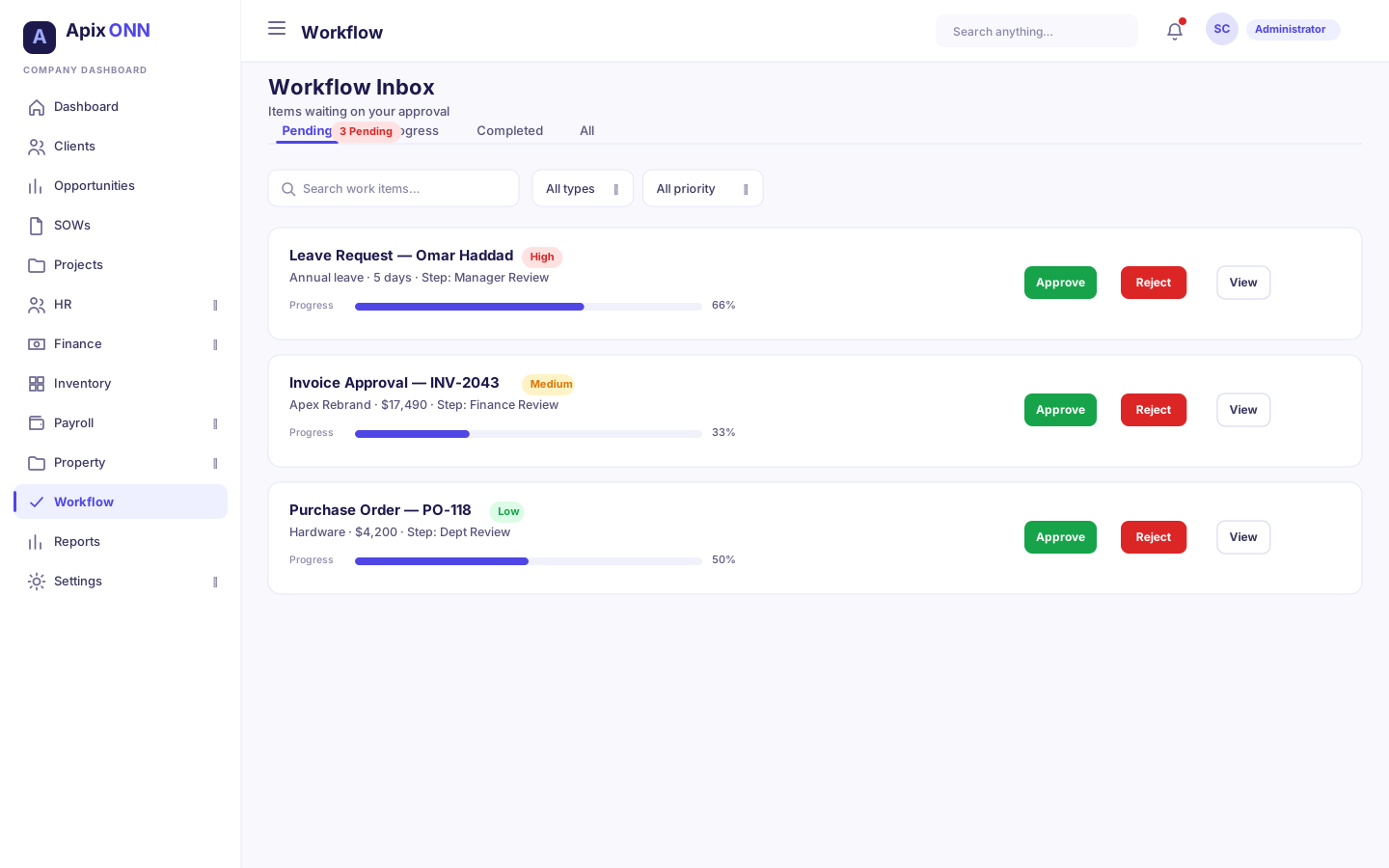
- See every work item currently assigned to you for approval.
- Switch between Pending items (awaiting your decision) and Completed items (already decided).
- Search by title, description, or requester.
- Filter by workflow type or priority (High / Normal / Low).
- See each item's progress — which step it's on (e.g. "Step 1 of 2") and who has already approved.
- Approve or Reject an item, with a comment.
- View the full details and history of an item before deciding.
#Reading a work-item card
Each card shows you, at a glance:
| On the card | What it tells you |
|---|---|
| Title & description | What's being approved and why |
| Step X of Y badge | Which approval step this is, and how many total |
| Status badge | Pending / Approved / Rejected / Cancelled |
| Overdue flag (red) | The step passed its response deadline (SLA) |
| Priority icon | High (red), Normal (yellow), or Low (green) |
| Requester | Who submitted the request |
| Due date | When your decision is expected |
| Progress bar | How many steps are approved out of the total |
| "Approved by" chips | Who approved the earlier steps, and when |
Tip: The number badge next to Workflow Inbox in the sidebar shows how many items are waiting for you. Open the inbox to clear them.
#The golden rule: you can only approve items assigned to you
This trips people up constantly, so it's worth stating plainly:
Your Workflow Inbox only ever shows items routed to you. You cannot see, open, or approve an item that was routed to someone else — and there is no exception for senior roles. Even a Super Admin cannot approve an item assigned to another person. The system checks, on every approval, that the item belongs to the person clicking the button.
Why it works this way:
- Each step is routed to a specific person: the requester's manager, a person holding the step's role, a named person, the department head, or the project's manager. If a step says "Finance Manager approves," it goes to a user who holds the Finance Manager role — not to you, unless that's you.
- Separation of duties means the approver must be a different, specific person, so authority can't be bypassed by whoever happens to be an admin.
What this means in practice:
- If your inbox is empty, nothing is waiting on you — even if a colleague is stuck waiting for an approval on something you care about.
- If a request is stuck because the assigned approver is unavailable, the fix is a delegation (Settings → Delegations) or automatic escalation (see FAQ), not "an admin approves it instead."
#How to approve an item
- Go to Sidebar → Workflow Inbox.
- Make sure you're on the Pending tab.
- Find the item (use search or the Type / Priority filters if the list is long).
- Click View to review the full request and its history (recommended for anything significant).
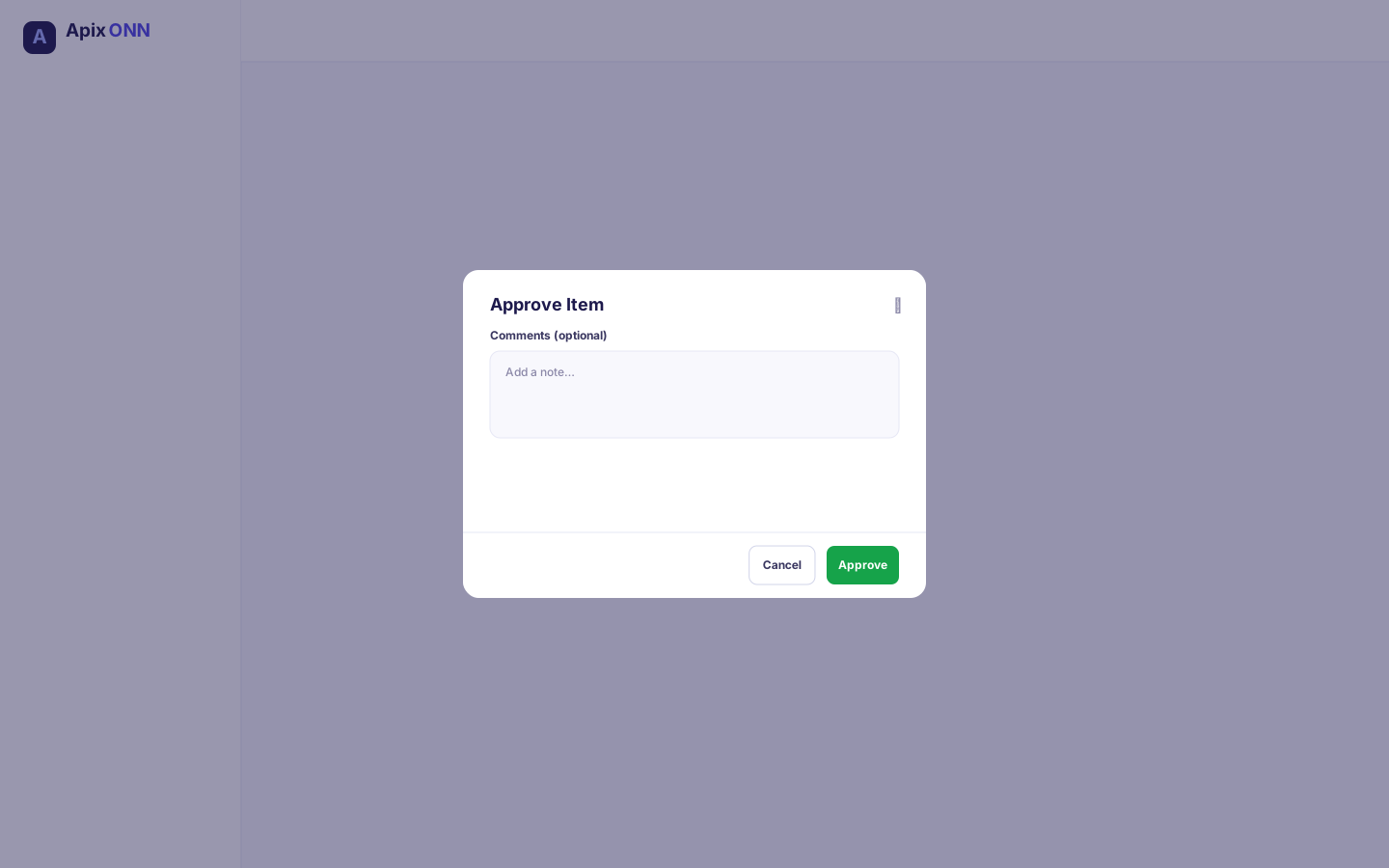
- Click the green Approve button on the item.
- In the pop-up, optionally type a note in the comments box ("Add any comments or notes…").
- Click Approve to confirm.
The item moves out of your Pending list. If it was the last step, the underlying record now completes (see "What happens after the final approval"). If more steps remain, it automatically routes to the next approver.
#How to reject an item
- Open Workflow Inbox → Pending.
- Find the item and click the red Reject button.
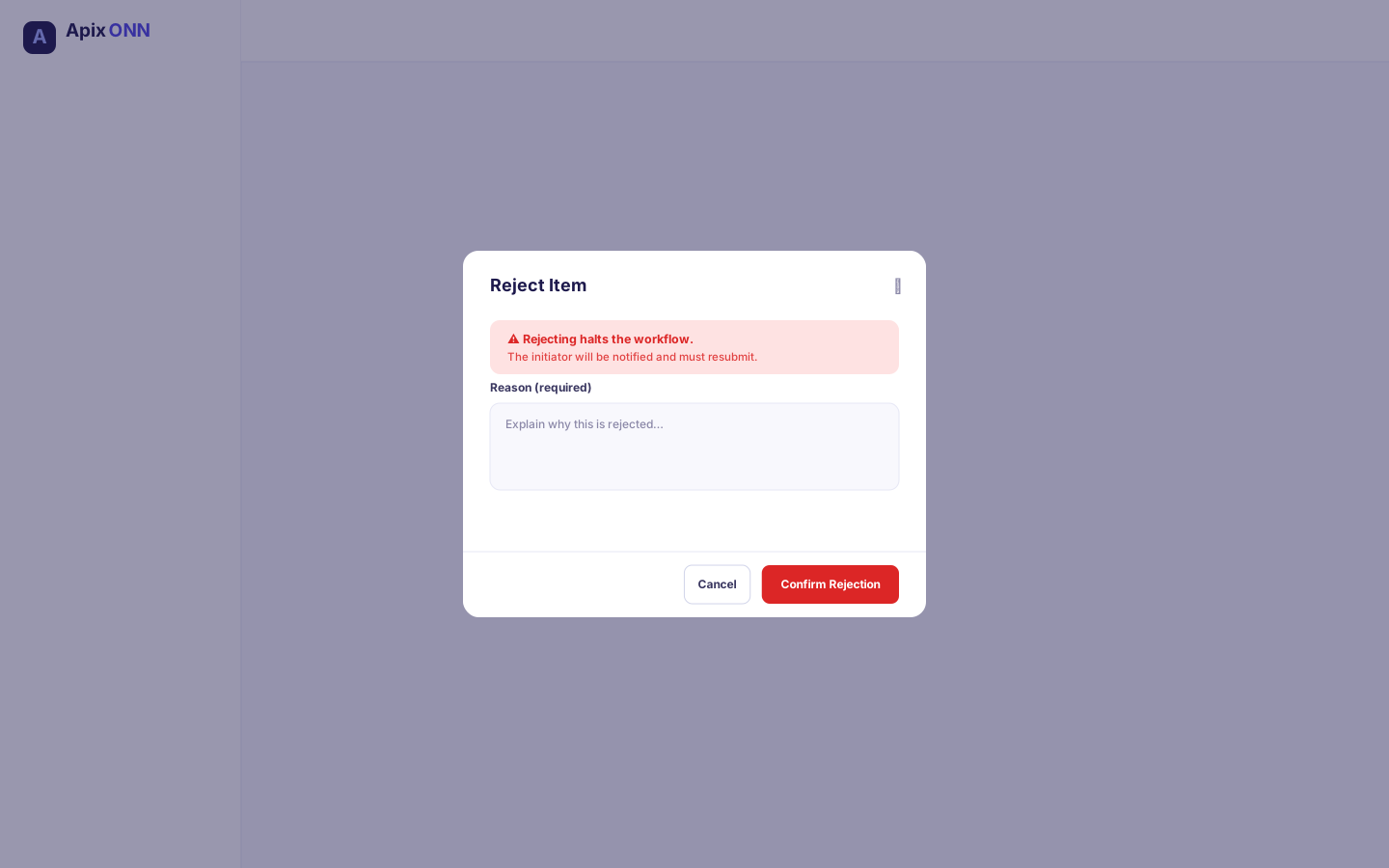
- In the pop-up, type a clear reason in the text box. A reason of at least 10 characters is required — the Confirm button stays disabled until you provide one.
- Click Confirm Rejection.
Note: Rejecting halts the entire workflow immediately. Any later steps that hadn't happened yet are cancelled, the underlying record is marked rejected (or returned for rework), and the original requester is notified with your reason. Rejection is not "send back one step" — it stops the whole request. Be specific in your reason so the requester knows what to fix.
#How to know an approval is waiting for you
You'll find out in two places:
| Where | What you'll see |
|---|---|
| Sidebar → Workflow Inbox | A number badge showing how many items are pending, plus a Pending Items count at the top of the inbox itself. |
| Sidebar → Notifications → Inbox | A notification each time an item is assigned to you, plus notifications when your own submitted requests are approved, rejected, or completed. |
Tip: Get in the habit of checking the Workflow Inbox whenever its badge shows a number. Approvals often have a response deadline (SLA), and overdue items are flagged in red and can be escalated.
#The big picture: what triggers approval, who approves, and where it goes
This is the master reference. Every action below, when submitted, creates work items that appear only in the assigned approver's Workflow Inbox, step by step. Approvers are matched by role; where a step says "Manager," the system routes to the requester's own line manager.
Note: Your company's administrator can customise these chains (Sidebar → Settings → Workflows; see Setting up approval chains). The routing below reflects the standard preset workflows shipped with ApixONN. If your company changed a workflow, the steps you see may differ — always trust what's in your Workflow Inbox.
#Projects & milestones
| Action you submit | Approval workflow | Step 1 | Step 2 | Step 3 | Step 4 |
|---|---|---|---|---|---|
| Payment milestone under $10K | Milestone Payment (Small) | Project Manager | Finance Manager | — | — |
| Payment milestone $10K–$50K | Milestone Payment (Medium) | Project Manager | Finance Manager | CFO | — |
| Payment milestone over $50K | Milestone Payment (Large) | Project Manager | Finance Manager | CFO | CEO |
| Go-live milestone | Go-Live Milestone Approval | Technical/PM verification | Project Manager sign-off | Executive (CEO) | — |
| Approval-type or critical milestone | Milestone Completion Approval | Project Manager | Department Head (manager) | — | — |
| Create a new project | Project Creation Approval | PMO review | Finance Manager | — | — |
| Project budget change (>10%) | Project Budget Change | Project Manager | Finance Manager | CFO | — |
| Resource allocation to a project | Resource Allocation Approval | Manager | Resource Manager | Project Manager | — |
| Weekly timesheet | Weekly Timesheet Approval | Manager | — | — | — |
#HR & people
| Action you submit | Approval workflow | Step 1 | Step 2 | Step 3 | Step 4 | | --- | --- | --- | --- | --- | | Leave request, up to 5 days | Leave Request Approval | Your Manager | HR | — | — | | Leave request, over 5 days | Leave Request Approval (Extended) | Your Manager | Department Head | HR | — | | Contract renewal | Contract Renewal | Manager | HR Manager | — | — | | Salary amendment | Salary Amendment Approval | Manager | HR Manager | CFO | — | | Grade change / promotion | Grade Change Approval | Manager | HR Manager | — | — | | Contract termination | Contract Termination | Manager | HR Director | CEO | — | | Promotion request | Employee Promotion | Manager | Department Head | HR Director | CEO | | Performance evaluation | Performance Evaluation | Manager | HR Manager | — | — | | Uploaded document verification | Document Verification | HR | — | — | — |
#Finance & payroll
| Action you submit | Approval workflow | Step 1 | Step 2 | Step 3 |
|---|---|---|---|---|
| Invoice under $10K | (No workflow) | Takes effect without approval | — | — |
| Invoice $10K–$50K | Invoice Approval (Medium) | Finance Manager | CFO | — |
| Invoice over $50K | Invoice Approval (Large) | Finance Manager | CFO | CEO |
| Receipt over $5K | Receipt Approval | Finance Manager | — | — |
| Payroll cycle | Payroll Cycle Approval | HR Manager | CFO | — |
| Emergency payroll override | Payroll Emergency Override | HR Director | CFO | — |
| Salary advance request | Salary Advance Request | Manager | HR Manager | Finance Manager |
Note: The amount thresholds decide which workflow runs. A payment milestone is measured by its payment amount; an invoice by its total. This is why a $9,000 invoice completes instantly while a $12,000 one waits for two approvals.
Note on "CFO/CEO" steps: Your company maps these to whichever roles it uses for senior finance and executive sign-off. If your company doesn't use a particular senior role, your administrator will have adjusted the workflow so it still routes to a real person. The 13 standard roles you may see as approvers include Project Manager, Finance Manager, Payroll Manager, HR Manager, Resource Manager, Team Lead, Accountant, Admin, and Super Admin.
#What happens after the final approval
Once the last required approver approves, ApixONN completes the underlying action automatically. You don't have to go back and "finish" it. Examples:
| What was approved | What happens on final approval |
|---|---|
| Payment milestone | The milestone is marked completed, and if it's billable, a draft invoice is created automatically so Finance doesn't re-key the amount. (It's a draft only — no revenue is posted until Finance reviews and sends it.) |
| Leave request | The leave is approved and the employee's leave balance is deducted. |
| Invoice | The invoice is marked approved, ready to be sent. |
| Resource allocation | The allocation goes active and a budget entry is created. |
| New project | The project moves from planning to active. |
| Contract renewal | The contract's end date is extended and logged. |
| Salary amendment / grade change | The new pay or grade is applied to the employee's contract. |
| Contract termination | The contract is marked terminated with a termination date. |
| Timesheet / evaluation / payroll cycle | Marked approved and ready for the next stage. |
If instead the request is rejected at any step, the record is marked rejected (or, for milestones, returned to in progress so it can be reworked and re-submitted), and the requester is notified.
#Statuses
Work items in your inbox carry one of these statuses:
| Status | What it means |
|---|---|
| Pending | Waiting for the assigned approver to decide. Shows in the Pending tab. |
| Approved | This step was approved. If it was the last step, the whole request is complete. |
| Rejected | Someone rejected this step, which halted the entire workflow. |
| Cancelled | This step never needed a decision — it was cancelled because an earlier step was rejected, or the item was reassigned away. |
An item may also be flagged Overdue (red) if it passed its response deadline while still pending.
#Setting up approval chains (Settings → Workflows)
Where to find it: Sidebar → Settings → Workflows. The page is called Approval workflows.
This is where an administrator decides who approves each kind of request. You don't build workflows from scratch: the page lists every process the system sends for approval, and for each one you build its approval chain step by step. Approvals then arrive in each approver's Workflow Inbox.
Note: Opening this page, setting up an approval, and changing approvers each need their own permission, usually held by Admin and Super Admin. If you can see a process but not the button, the card says "Ask an administrator to set this up."
#The processes you can set up
The processes are grouped by area. Each card says when the process starts (for example "An employee submits a leave request."), shows its current chain in plain words (for example "The requester's direct manager → Anyone with the role HR Manager"), and carries a badge: Active or Not set up.
| Area | Processes |
|---|---|
| HR | Leave requests, Employee documents, Contract renewals, Salary changes, Grade changes |
| Timesheets | Weekly timesheets |
| Projects | New projects, Resource allocations, Milestone completion, Go-live milestones, Milestone payments — small, Milestone payments — medium, Milestone payments — large |
| Payroll | Payroll runs |
| Clients | Statements of work |
| Property | Leases |
Important: A process marked Not set up has no approval chain, so requests of that kind can't be submitted until one is set up. A banner at the top of the page tells you how many processes are in that state.
At the bottom of the page, a collapsed list of ready-made workflows that no screen uses yet holds preset workflows that nothing starts. They're marked Not used and never run, so you can ignore them.
Settings → Workflows — the Approval workflows page, processes grouped by area, one card showing "Not set up"
#How to set up or change an approval chain
- Go to Sidebar → Settings → Workflows.
- On the process's card, click Set up approval (if it isn't set up yet) or Change approvers.
- Under Who approves, choose who approves the first step (see the table below).
- Click + Add a step for each further step, up to 10. Use ↑ and ↓ to reorder steps and ✕ to remove one. At least one step is needed.
- Optionally, give each step:
- a Step name (a sensible name is filled in for you, such as "Direct manager approval"),
- an Escalate if not decided within (hours) deadline,
- a Note to the approver (optional), for example "Check the team calendar before approving".
- Check the summary line under the steps. It reads Order: followed by your steps and → Approved.
- Adjust the Options if needed (see below).
- Click Set up approval (new) or Save approval (existing).
The request is approved when the last step approves, and it stops at the first rejection.
Who can approve a step
| Choice | Who gets the step |
|---|---|
| Their manager | The requester's manager, following their reporting line. Choose how far up: Direct manager, Manager's manager, 3 levels up, 4 levels up, or 5 levels up. |
| A role | Anyone with the role you choose from the list. The step goes to the first person holding it, never the requester. |
| A specific person | Always the same person. Search for them by name. |
| Department head | The head of the requester's department. |
| Project manager | The manager of the project the request is about, as set in the project's Project Manager field (see Projects). Offered only for processes in the Projects area. |
Change approvers — a two-step chain (Their manager → A role) with the "Order: … → Approved" line
#Options
| Option | What it does |
|---|---|
| Name | The name of the approval. Defaults to the process name plus "approval". |
| Escalate each step after (hours) | An approval not decided in time is escalated. A step's own deadline overrides this. Leave it empty for no deadline. |
| Description | Optional. |
| Approvers can pass an approval to someone else | Lets an approver hand an item on. |
| Approvers' delegates (when they are away) can approve | Lets a delegate act for an absent approver. |
| Notify approvers when something is waiting for them | Sends approvers a notification for each new item. |
To review a chain without changing it, click Details on its card. The details page lists Who approves, in order and the Options in plain words.
#Removing an approval chain
There's no delete button. A process that the system uses needs an approval chain, so it can't be deleted. If you no longer want a particular person or role to approve it, click Change approvers and change who approves it instead.
#Tips & FAQ
"I submitted something but nothing happened — where did it go?" It's waiting for an approver. Nothing takes effect until it's approved. The item is in the assigned approver's Workflow Inbox, not yours and not on the record's page. Check the record's status — it should read pending — and check your Notifications for a confirmation that it was submitted.
"Who approves my request?" It depends on the action — see the big table above. As a rule of thumb: most HR requests (leave, renewals, salary, promotions) start with your line manager, then HR. Most finance and milestone items start with the relevant manager (Project Manager or Finance Manager) and climb to senior finance/executive roles as the amount grows.
"I can't find the approval in my inbox — I'm sure it's mine." Three checks: (1) You're on the Pending tab, not Completed. (2) The item is genuinely routed to your role at the current step — if it's still on an earlier step handled by someone else, it won't reach you until they approve. (3) You actually hold the role the step requires. If all three are true and it's still missing, ask your administrator to confirm the workflow's routing.
"I'm a Super Admin (or Admin) — why can't I approve this?" Because it isn't assigned to you. Approval authority follows the specific person the step routed to, not your permission level. This is deliberate — it keeps separation of duties intact. If the assigned approver is unavailable, set up a delegation (Settings → Delegations) or rely on automatic escalation rather than expecting an admin override.
"The approver is on leave and the request is stuck." Set up a Delegation ahead of time under Settings → Delegations so someone else can act on the approver's behalf while they're away. Overdue items are also escalated automatically to a manager or admin. (On the work item itself the actions are Approve and Reject — reassignment is handled through delegations and escalation, not a button on the card.)
"I rejected by mistake — can I undo it?" No. Rejection halts the workflow and can't be reversed from the inbox. The requester needs to submit the action again, which starts a fresh approval from step 1.
"Why did my small invoice go through instantly but a bigger one didn't?" Amount thresholds. Invoices under the small threshold have no workflow and take effect immediately; larger amounts trigger multi-step approval. Same idea for milestone payments.
"Who sets up or changes these approval chains?" An administrator, under Sidebar → Settings → Workflows (see Setting up approval chains). If your company's steps differ from the tables above, that's expected — your administrator has customised them. The Workflow Inbox always reflects the real, current routing.
"I can't submit a request — no approval is set up for it." Every process that needs approval must have an approval chain before requests of that kind can be submitted. Ask your administrator to open Settings → Workflows and click Set up approval on that process.
"Can we delete an approval workflow we don't want?" No. A process the system uses needs an approval chain, so there's no delete button. Change who approves it instead, with Change approvers.
"What does the number on the Workflow Inbox menu mean?" It's how many items are waiting for you. Open the inbox and clear your Pending list.