Inventory
The Inventory module (المخزن) manages the products you buy, sell, and consume, the suppliers you buy from, goods received against purchase orders, goods issued out of stock, and a live stock report. It's tightly wired into Finance: the products are the same catalogue used on quotations, sales orders, invoices, bills, and purchase orders, and every receipt, issue, and stock sale posts to the general ledger.
Company Dashboard8 min read6 sections
On this page6 sections
Read this first: This is a cost/stock ledger, not a warehouse system. It tracks on-hand quantity as simply received − issued, values it at weighted-average cost, and posts the accounting behind it. There are no warehouses or bin locations, stock adjustments, reservations, or batch/lot/serial numbers. You can set a reorder level and reorder quantity per product, and the Inventory Reports tell you what to reorder — but nothing is ordered automatically.
Where to find it: Sidebar → Inventory (المخزن)
The module has four tabs: Products & Suppliers, PO Receipts, Goods Issued, and Stock Report. The analysis reports live separately under Reports → Inventory Reports (see below).
#Products & suppliers
The first tab has two sub-tabs.
Products are the items you buy, sell, or consume. Each has a Code, Name, Category, Unit (e.g. pcs, kg, box), Unit Price, Tax Rate %, and an Active flag. Create one with + New Product; Edit and Delete are on each row. The list's In Stock column shows the quantity on hand for stock items, or "Not tracked" for everything else.
Suppliers are who you buy from — Code, Name, Contact, Email, Phone, payment Terms, plus tax number and address. Create with + New Supplier; Edit/Delete per row.
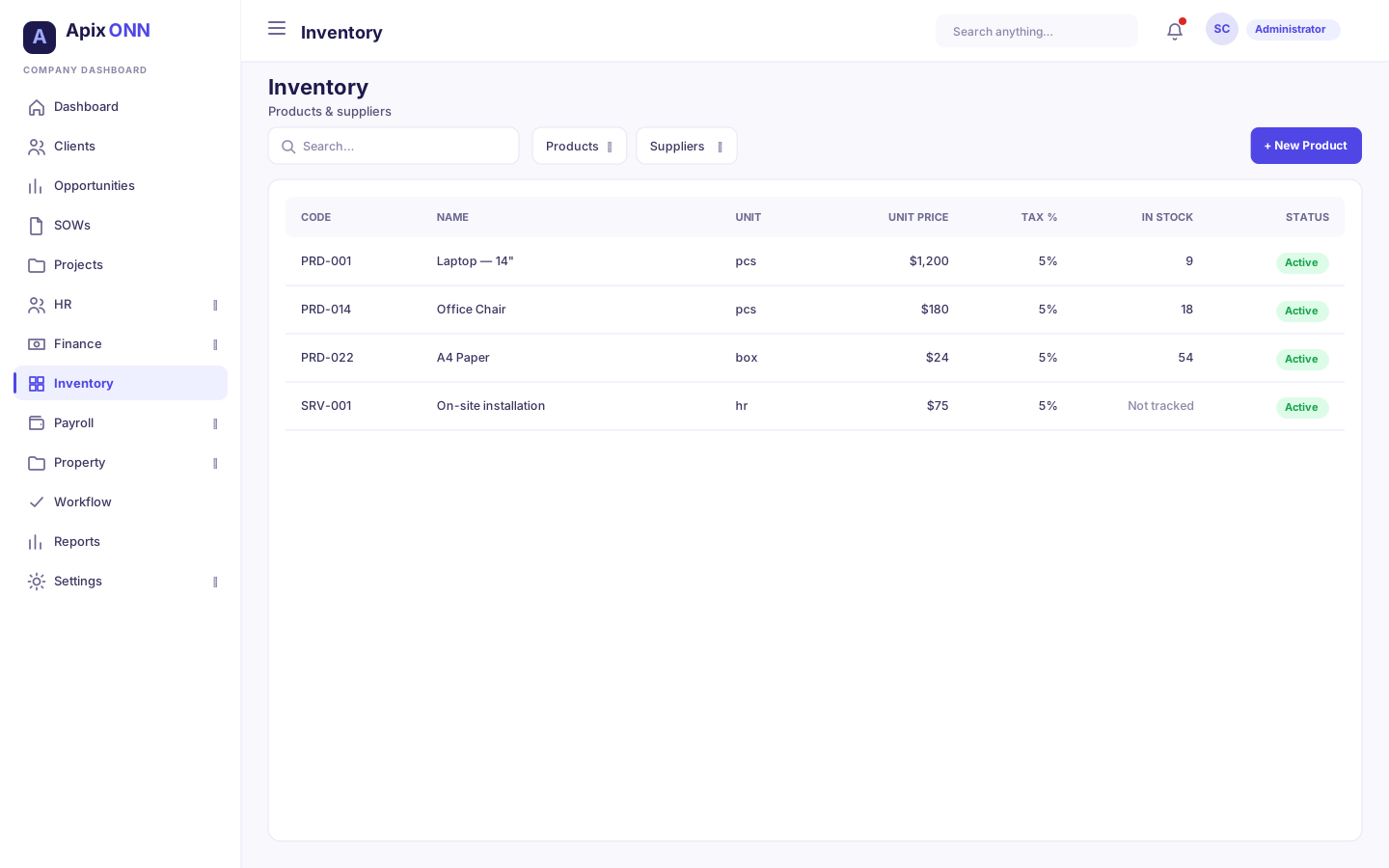
Note: Products here are the same catalogue used across Finance — the items you pick on quotations, sales orders, invoices, bills, purchase orders, and purchase requisitions. Edit a product once and it's consistent everywhere. The Unit Price is the selling price; what a unit cost you comes from your goods receipts.
#Track stock
On the product form, Track stock decides whether the product is a stock item:
- On — the product has an on-hand quantity. Selling it on an invoice takes it out of stock and records its cost of sales (see Finance → Selling stock items).
- Off — use this for services and anything you don't hold in stock. Invoicing it records revenue only.
You don't always have to switch it on by hand: receiving a product on a goods receipt turns Track stock on.
#Planning fields
When Track stock is on, five more fields appear. They feed the Inventory Reports; all are optional.
| Field | What it means | Notes |
|---|---|---|
| Inventory type | What kind of stock this is | Merchandise (default), Raw material, Work in progress, Finished goods, or Consumable. Used to group the WIP & finished goods report. |
| Standard cost | The cost you expect to pay per unit | Optional. Compared with actual receipt costs in Standard vs actual. |
| Lead time (days) | How long a supplier takes to deliver | Used to work out the reorder point. If blank, the reorder report assumes 7 days. |
| Reorder level | Reorder when on hand + on order falls to this | Leave blank ("auto from usage") to let the report calculate it. |
| Reorder quantity | How much to order each time | Leave blank ("auto (EOQ)") to use the economic order quantity. |
#Goods received (PO Receipts / GRN)
When stock arrives, record a Goods Receipt Note (GRN) against an approved purchase order. Press + Record Receipt (GRN), pick an approved PO (the supplier, date, and currency fill in), then confirm the received quantity for each line (which can differ from what was ordered) and save.
Recording a GRN posts a journal entry — Dr Inventory / Cr GRNI (goods-received-not-invoiced) — and raises your on-hand stock. The Entry column shows the posted entry.
When the supplier's bill arrives, use Link Bill on the GRN. That creates an AP bill and posts the clearing entry Dr GRNI / Cr Accounts Payable. The Link Bill dialog previews the exact accounts, auto-fills the amount from the GRN (editable, with an over/under indicator if you change it), and sets a bill date and a due date 30 days out.
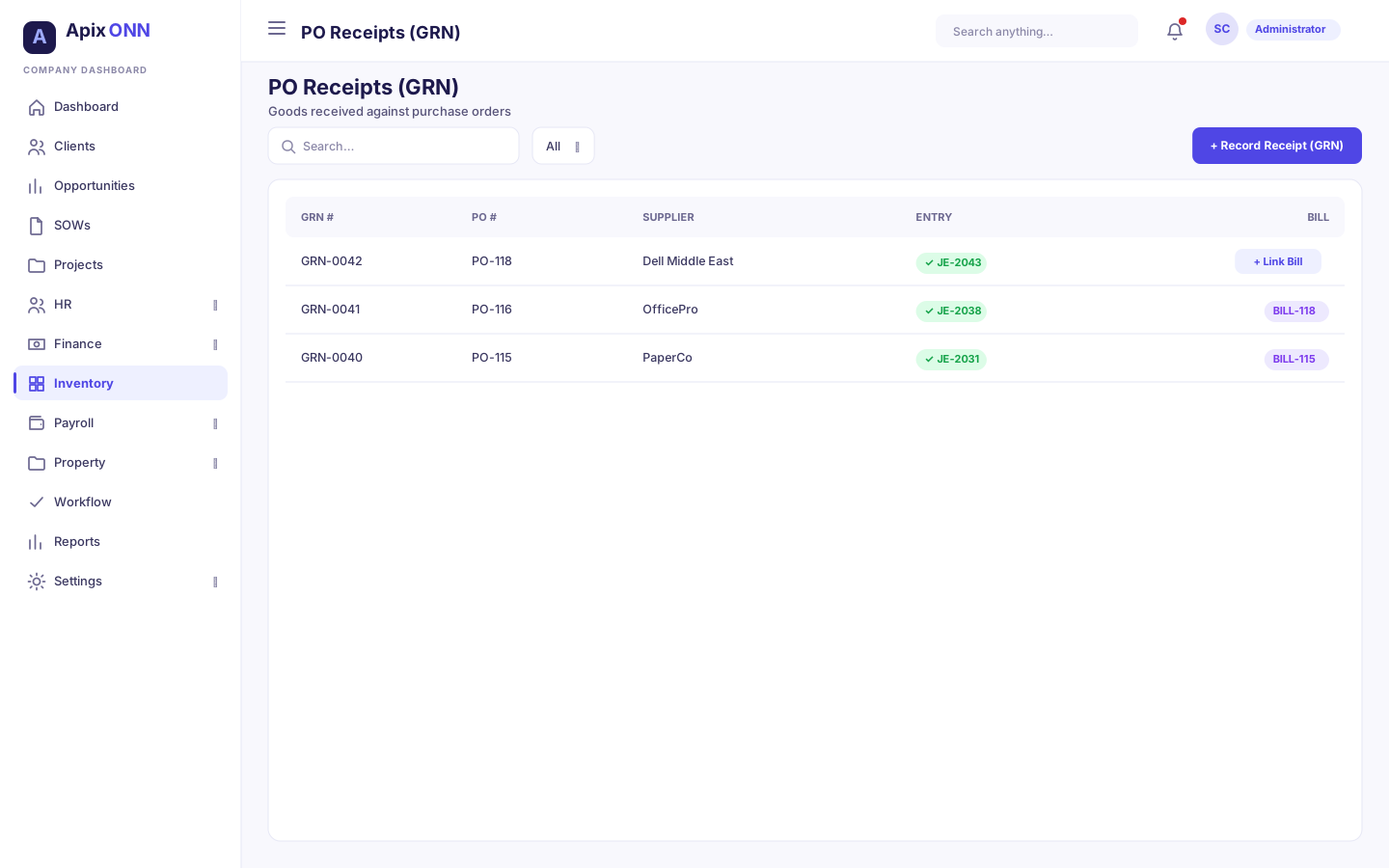
Note: This is a three-way match — purchase order, goods received, and supplier bill — with GRNI as the holding account in between. Deleting a GRN reduces stock again and reverses its entry; you can't delete one that's already been billed.
#Goods issued
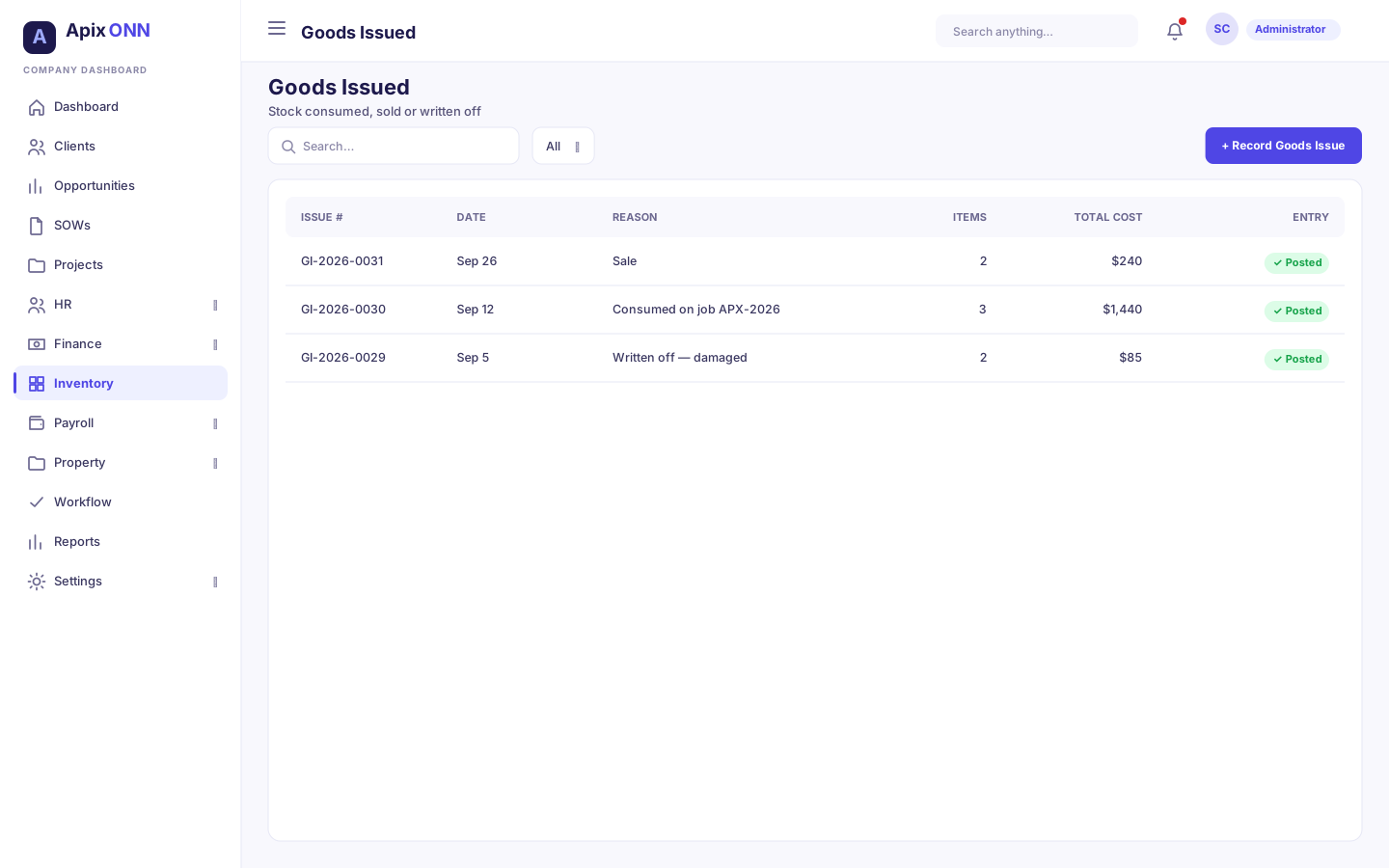
When stock leaves — consumed on a job, sold, or written off — record a Goods Issue. Press + Record Goods Issue, set the Issue Date and a Reason, then add the products and quantities. On hand is shown per line and you can't issue more than you have.
Leave Unit Cost blank and the issue uses the product's average cost — the weighted-average cost the stock is carried at in the Inventory account. When you pick a product, that average cost appears greyed out in the Unit Cost box, and the line's Amount and the Total are worked out with it. Type a cost only if you deliberately want to override it.
Issuing stock posts Dr Cost of Revenue / Cr Inventory and lowers on-hand. Issues are a record of what left stock and, once recorded, aren't edited.
Tip: You don't need to record a goods issue for stock you sell on an invoice — sending the invoice does it for you. Those issues appear here automatically with the reason Sale and the invoice number as the reference.
#Stock report
The Stock Report is your live position: three cards — Total Products, Total Stock Qty, and Total Stock Value — over a table showing, per product, the Received, Issued, and Qty in Stock quantities, the Avg Cost, and the Total Value (quantity × average cost), with totals at the bottom. Export it to Excel or PDF.
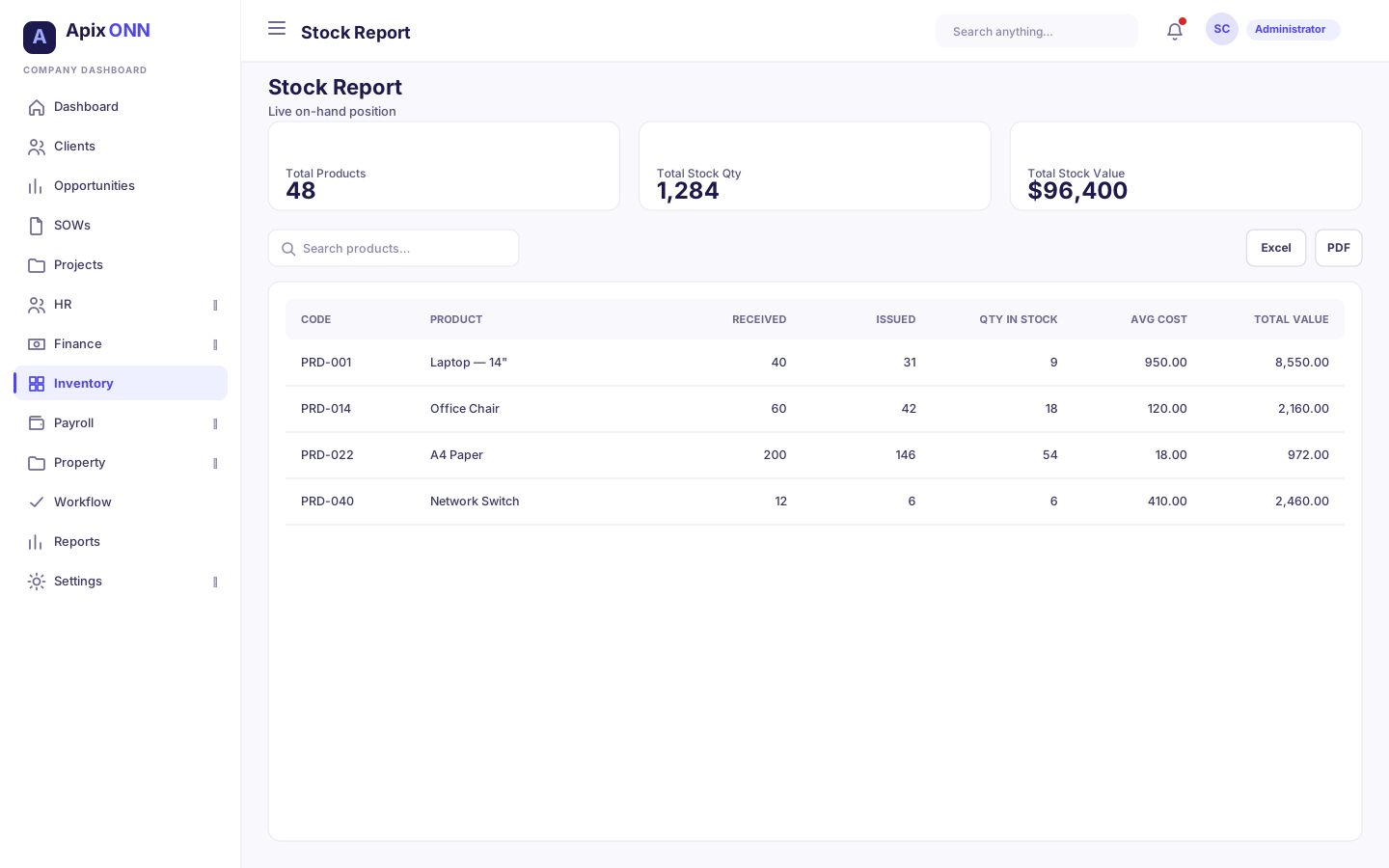
Note: The receipts, issues, and stock report show everything — there are no date filters on these lists. For a position at a past date, movements over a period, or a single product's history, use the Inventory Reports.
#Inventory reports
Where to find it: Reports → Inventory Reports (needs the View Inventory Reports permission).
These reports are built from the stock ledger — receipts in at their actual cost, issues out at the cost they left at — so they agree with each other and with the Inventory account. All amounts are in your company's base currency (shown on the page). Each tab has Excel and Print / PDF buttons for the table on screen, and reloads on its own when you change a date or input.
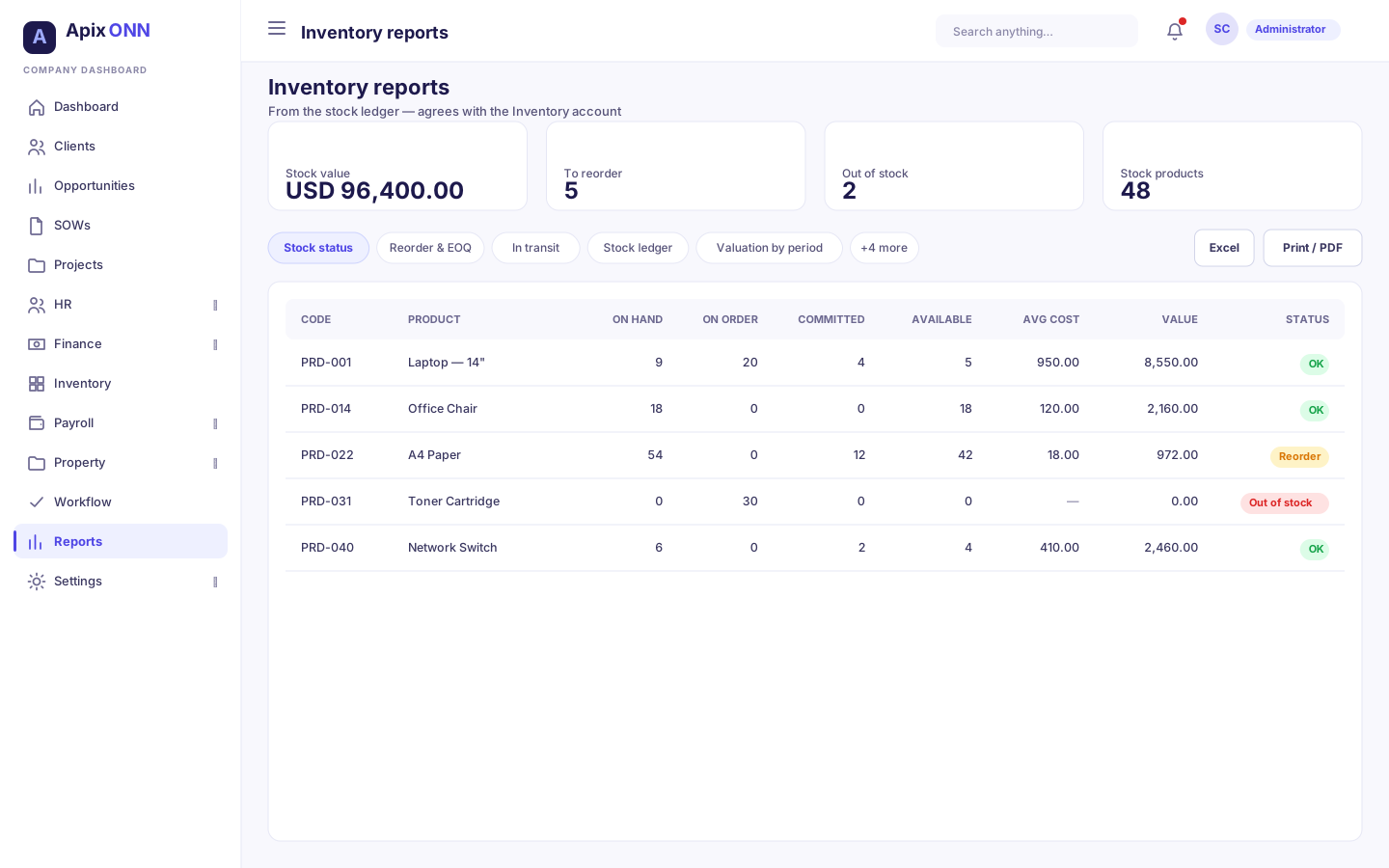
There are nine tabs:
| Tab | What it shows | Inputs |
|---|---|---|
| Stock status | Every stock product's On hand, On order (on approved purchase orders, not yet received), Committed (on confirmed sales orders, not yet invoiced), Available (on hand − committed), Reorder level, Avg cost, Value, and a Status. Cards: Stock value, To reorder, Out of stock, Stock products. | As of date |
| Reorder & EOQ | What to buy and how much — see below. | Cost per order, Holding cost % per year |
| In transit | Every line on an approved purchase order that hasn't fully arrived: Ordered, Received, To arrive, Value, Expected date, and Days late. Cards: Lines to arrive, Value in transit, Late. | — (always today) |
| Stock ledger | A stock card: each movement in date order — its Movement (Goods receipt, Sale, or the goods issue's reason), Reference, In, Out, Unit cost, running Balance, Balance value, and Avg cost. Cards: Opening, In, Out, Closing. | From, To, Product (All products, or one stock item) |
| Valuation by period | Per product: Opening, In, Out, and Closing quantity and value for the period. | From, To |
| WIP & finished goods | The same valuation grouped by Inventory type (Raw materials, Work in progress, Finished goods, Merchandise, Consumables). | From, To |
| Standard vs actual | Each goods receipt of a product that has a Standard cost: Standard, Actual, Variance, and whether it was Unfavourable (paid more), Favourable, or On standard. A card counts stock products that have no standard cost yet. | From, To |
| Purchase price variance | Each goods receipt compared with the price on its purchase order: PO price, Received price, and the PPV (base) in base currency. Cards: Net PPV, Paid above PO, Paid below PO. | From, To |
| Negative stock | Any product whose balance ever went below zero: On hand now, Lowest balance, First went negative. Issuing more than you have is blocked, so this list should stay empty. | — |
Stock status values: OK, Reorder (on hand is at or below the reorder level), Out of stock (nothing on hand), and Negative.
#Reorder & EOQ
This tab tells you which products to reorder now and how much to order. Two inputs sit at the top:
- Cost per order (default 100, in base currency) — what it costs you to place one order (admin, delivery, receiving).
- Holding cost % per year (default 20) — what it costs to keep stock for a year, as a percentage of its value (storage, insurance, capital tied up).
For each stock product the table shows On hand, On order, Used (12 mo) (quantity issued or sold in the last 365 days), Lead days, Reorder point, EOQ, Order qty, Order value, and an Action — Order now when on hand plus on order has fallen to the reorder point. Products to reorder are listed first.
How the numbers are worked out (the formulas are also shown on the page):
- Reorder point = the product's Reorder level if you set one; otherwise daily usage × lead time (lead time defaults to 7 days).
- EOQ (economic order quantity) = √(2 × yearly usage × cost per order ÷ (holding % × unit cost)). The unit cost is the product's average cost, or its standard cost if none is on hand. A product with no usage in the last year, or no cost, has no EOQ.
- Order qty = the product's Reorder quantity if you set one; otherwise the EOQ, rounded up.
Cards: Products to reorder, Estimated order value, and the two inputs you used.
Tip: If a report shows a yellow banner about documents "in another currency with no exchange rate set", those amounts are shown at face value. Add the missing rate in Settings → Currencies & Rates.
#How Inventory connects to Finance
Every stock movement is an accounting entry:
| In Inventory, when you… | The ledger records… |
|---|---|
| Record a GRN (goods received) | Dr Inventory / Cr GRNI |
| Link a bill to a GRN | Dr GRNI / Cr Accounts Payable (and creates the AP bill) |
| Record a goods issue | Dr Cost of Revenue / Cr Inventory |
| Send an invoice with stock items (in Finance) | Dr Cost of Revenue / Cr Inventory, at average cost (recorded as a goods issue with reason Sale) |
The Inventory, GRNI, and Cost-of-Revenue accounts are created automatically the first time they're needed. Purchase requisitions and purchase orders feed the receipts, and the products are the shared Finance catalogue — so buying, receiving, billing, selling, and consuming stock all tie back to the same ledger. See Finance → Purchase Requisitions and Finance → Purchase Orders for the buying side.