Property Management
The Property module runs the full operational and financial life of real estate — portfolios and buildings, the units inside them, leases and tenants, deposits and post-dated cheques, maintenance, and owner accounting. It's built for management companies handling residential and commercial property on behalf of owners.
Company Dashboard10 min read9 sections
On this page9 sections
Property is organised into eight sections in the sidebar: Overview, Portfolio, Model, Leasing, Maintenance, Owners, Reports, and Administration.
Read this first — Property originates, Finance posts. Whenever a Property action has a money effect — generating rent, billing a utility, approving vendor spend, settling an owner — Property creates a draft document in Finance (an AR invoice or an AP bill). Nothing hits the ledger until Finance reviews and posts it. This keeps one accounting engine and one audit trail. Throughout this page, "creates a draft invoice/bill" means exactly that.
A note on access: what you see in Property is scoped to the portfolios and properties you're authorised for (see Administration → Access). If a property isn't in your scope, it won't appear — that's by design, not a bug.
#Property overview
Where to find it: Sidebar → Property → Overview
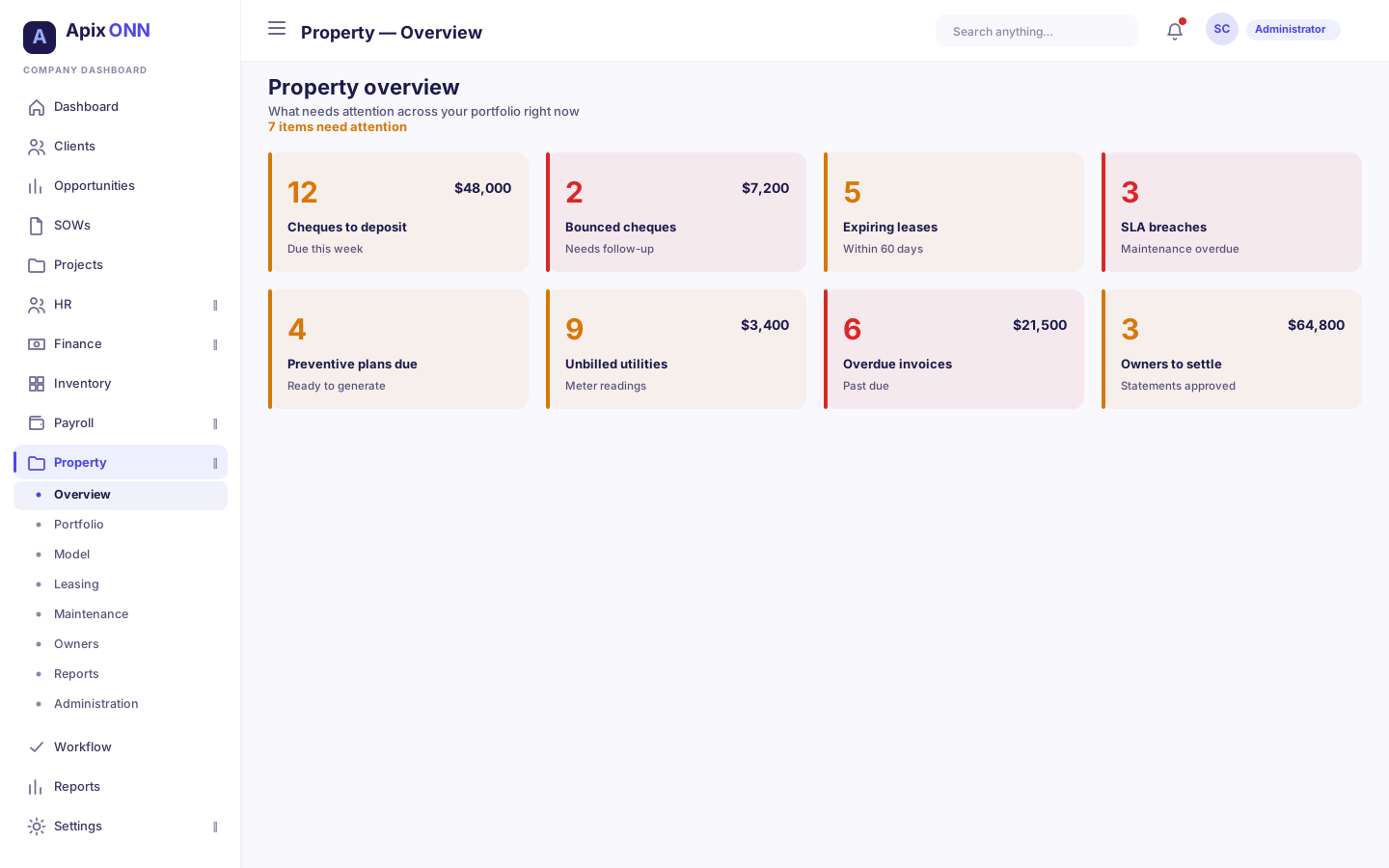
The Overview is a "what needs attention right now" digest across everything you manage. It shows a set of alert cards — each with a count, sometimes an amount, and a short hint — for things like cheques to deposit, bounced cheques, expiring leases, SLA breaches, preventive plans due, unbilled utilities, overdue invoices, and owners to settle. A card reads All clear when there's nothing to do. It's read-only: use it as your morning to-do list, then jump into the relevant section.
#Portfolio & units
Where to find it: Sidebar → Property → Portfolio
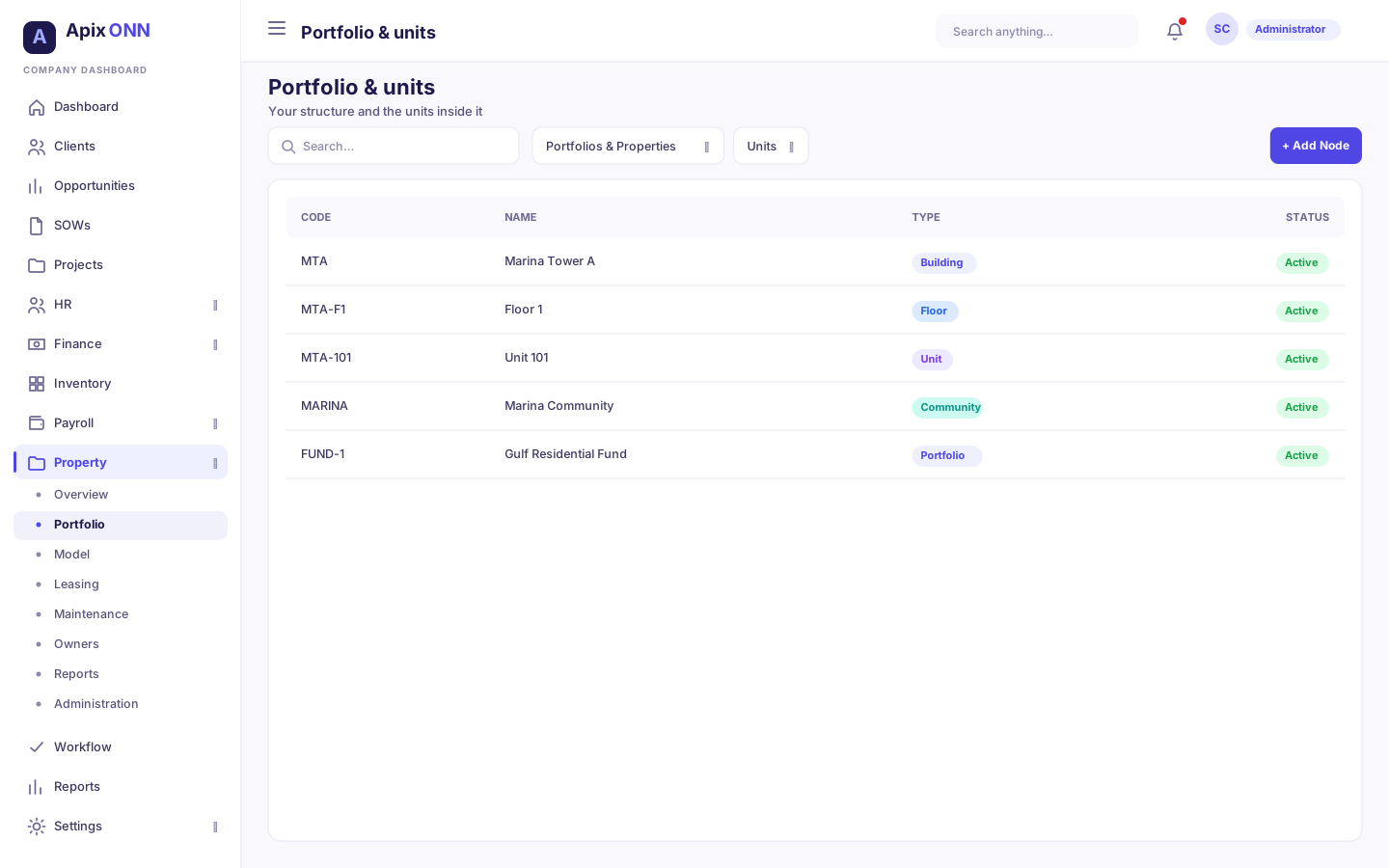
This is your structure — the hierarchy of portfolios, properties, buildings and floors, and the leasable units inside them. It has two sub-tabs.
Portfolios & Properties builds the tree. Each node has a Type (portfolio, community, property, building, tower, floor, zone, or unit), a code, a name, an optional parent (which is what makes it a tree), and an active/inactive status.
Units are the leasable spaces. Each unit records its property/node, unit number, type (residential, commercial, retail, office, parking, storage), area in m², market rent and currency, and an availability state:
| Availability | Meaning |
|---|---|
| Available | Vacant and ready to lease. |
| Occupied | Currently leased. |
| Reserved | Held for a specific tenant. |
| Out of service | Not lettable. |
| Maintenance | Temporarily out for works. |
#Building Model
Where to find it: Sidebar → Property → Model
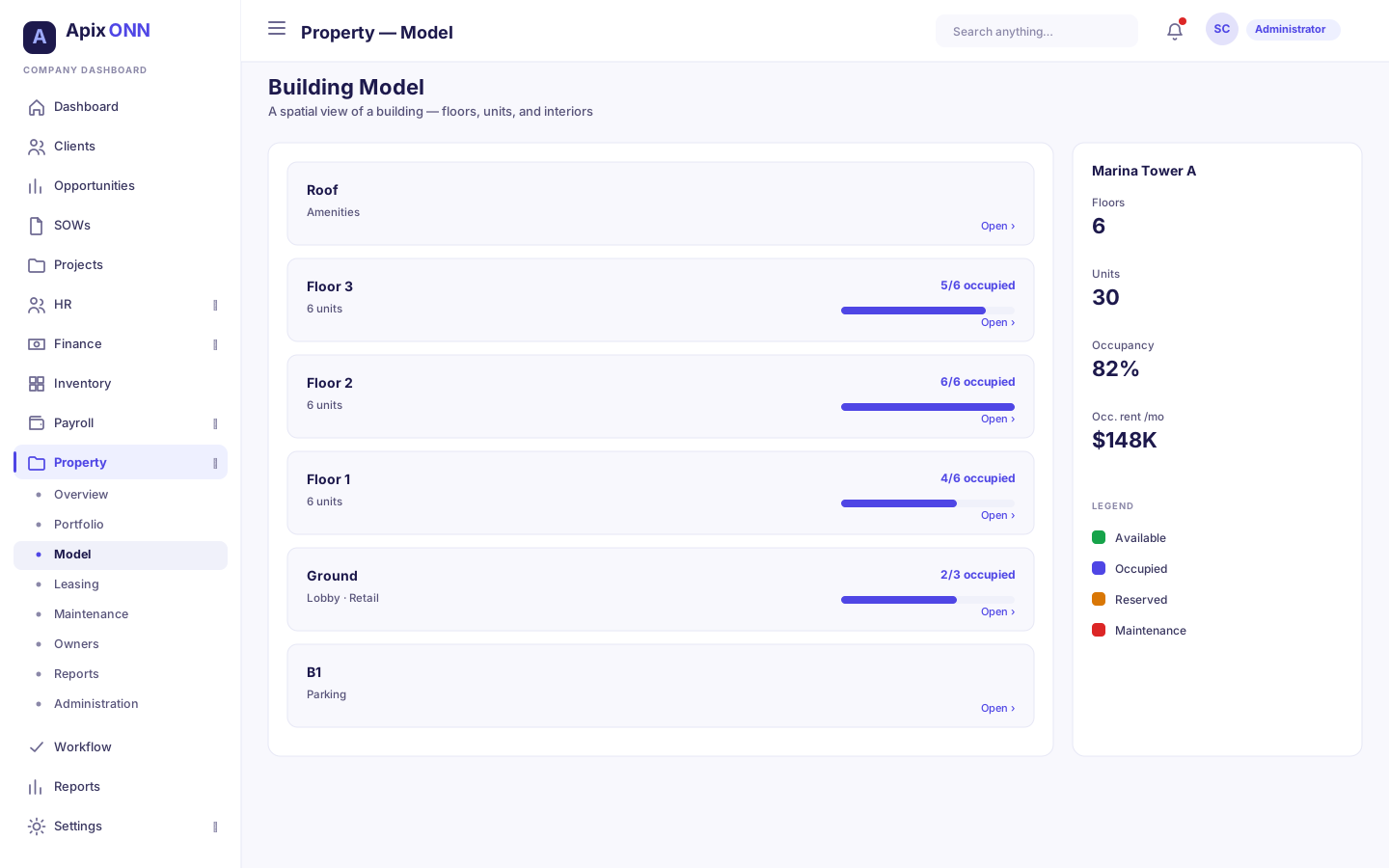
The Model is a visual, spatial view of a building rather than a table — a stack of floors you can open to a floor plan, and units you can open to their interior rooms. Pick a building from the top bar, then switch between View and Edit.
- Building elevation — the whole tower as a stack of floor cards, each showing its units, occupancy ratio, and an occupancy bar. In Edit mode you can add floors and clone a floor (copying its units, rents, room layouts, and features to another floor).
- Floor plan — a single floor's units laid out to scale. In Edit mode you can draw units, add structural or amenity elements (corridors, lifts, stairs, lobbies; gyms, pools, gardens), and adjust each unit.
- Apartment interior — a unit's rooms (living, kitchen, bedrooms, bathrooms…) with doors and windows.
An inspector panel on the right shows KPIs and lets you edit whatever you've selected — a unit's type, area, rent and availability; a room; or an opening. Changes save automatically.
Note: Rooms and amenities you add here feed a future tenant-facing view — today they're for your own visual model of the building.
#Leasing
Where to find it: Sidebar → Property → Leasing
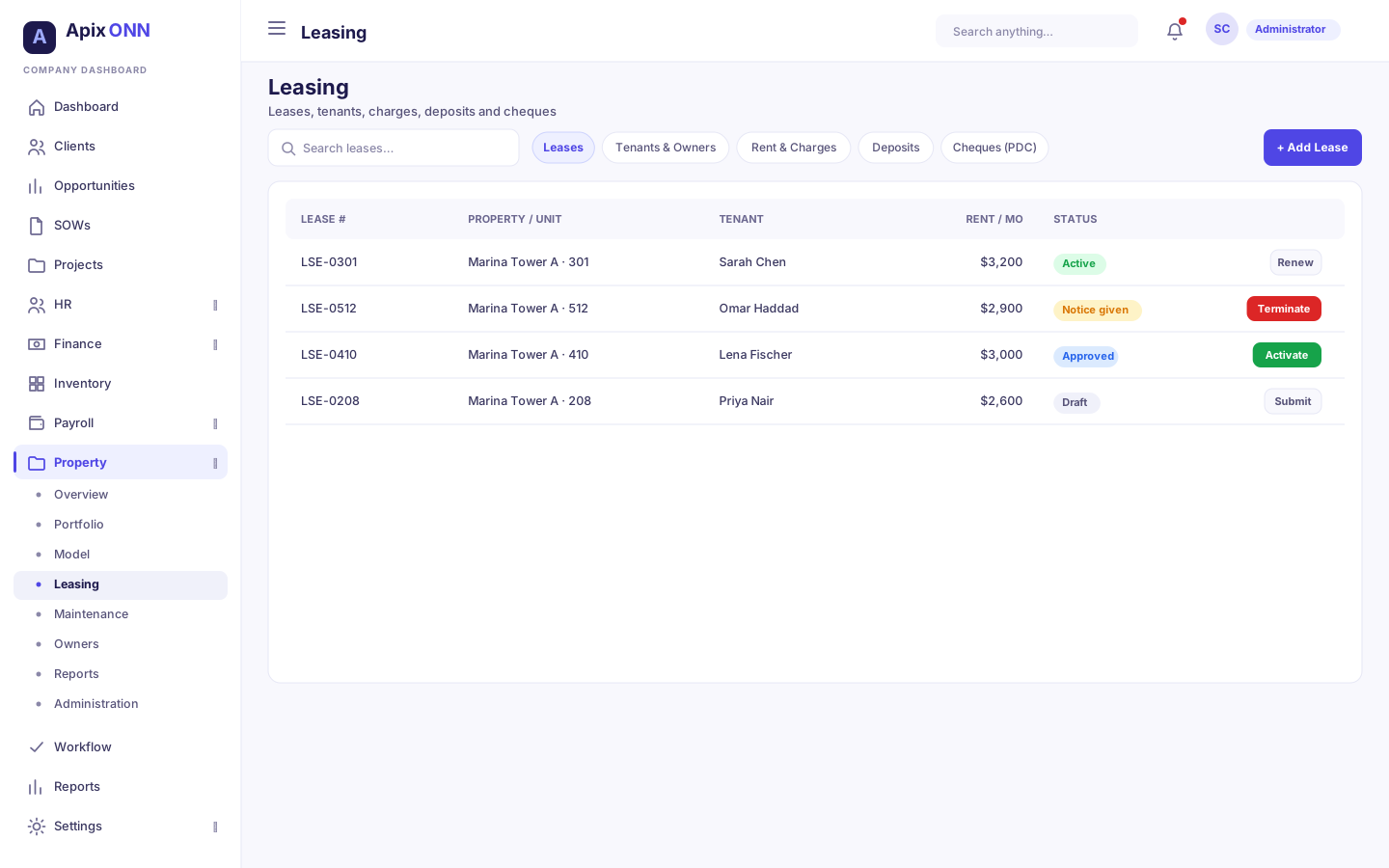
Everything attached to a lease, across five sub-tabs: Leases, Tenants & Owners, Rent & Charges, Deposits, and Cheques (PDC).
#Leases
A lease moves through a clear lifecycle using the buttons on its row:
Draft → (Submit) → Pending Approval → (Approve) → Approved → (Activate) → Active. An active lease can be Renewed (you're prompted for the new start/end dates and any escalation %) or Terminated (with a reason and effective date). Full status set: draft, pending approval, approved, active, notice given, expired, terminated.
How to set up a new lease
- On the Leases tab, click + Add Lease. The New lease form opens.
- Choose the Property.
- Pick the Tenant by searching for them. If they're new, click + New tenant, choose Individual or Company, enter their name, and click Add tenant — they're selected for you.
- Under Units, click the units of that property the lease covers. (Only the chosen property's units are shown; changing the property clears them.)
- Set the Start date and End date.
- Enter the Rent, how often it's Charged (Every month, Every quarter, Every year, or Once), and the Currency (it defaults to your company's currency).
- Set the Notice period (days) (60 by default) and add any Notes.
- Click Create lease. It's saved as a draft.
You can save a draft before you have every detail. The form tells you what's still missing before it can be submitted.
How to submit a lease for approval
A draft can be submitted once it has a tenant, at least one unit, and start and end dates. Click Submit on its row. It becomes pending approval, and goes to the approvers set up for Leases under Settings → Workflows (see Workflow & Approvals); they approve it in their Workflow Inbox. Once it's approved, click Activate.
Important: Once a lease is submitted, its terms are fixed. To change them, use Renew or Terminate. You can still edit its notes.
Lease field guide
| Field | What it means | Notes |
|---|---|---|
| Property | The property the lease is in | Required. |
| Tenant | Who is renting | Needed before submitting. Create one with + New tenant. |
| Units | The units of that property being let | At least one is needed before submitting. |
| Start date / End date | The lease term | Needed before submitting. The end must be after the start. |
| Rent | The rent amount | |
| Charged | How often the rent is charged | Every month, Every quarter, Every year, or Once. |
| Currency | The rent currency | Defaults to your company currency. |
| Notice period (days) | The lease's notice period, in days | Defaults to 60. |
#Tenants & Owners
The people and organisations on your leases — individuals or organizations, each with a legal/display name and status. (Vendors and staff aren't kept here; vendors live in Finance, staff in HR.)
#Rent & Charges
Charge schedules define recurring rent and other charges on a lease — an amount, currency, frequency (monthly, quarterly, annual, one-time), start/end dates, and tax %. The Generate Rent action turns every due schedule into draft rent invoices in Finance.
To add one, click + Add Charge Schedule and pick the Lease — that's the only link you need to set. Fill in the Amount, Frequency, and Start Date. The charge is recorded as Rent. The lease needs its start and end dates first.
#Deposits
Track tenant deposits by type (security, damage, key, utility) with their full balance story — Expected, Received, Held, Applied, Released. Row actions Receive, Apply, and Release move the money and post to the ledger; Apply can optionally relieve a specific Finance invoice's receivable.
#Cheques (PDC)
Post-dated cheques held in custody against a lease. Use Capture Cheque Batch to create a whole series at once (e.g. 12 monthly cheques aligned to the rent schedule, with bank, drawer, account, and custody details), or Add Cheque individually. Each cheque moves through received → deposited → cleared, or bounced (with a reason and optional penalty) → re-presented or replaced.
Note: Deposits and cheques handle other people's money, so their moves are explicit and posted to the ledger. A deposit can only be deleted before anything is received against it.
#Maintenance
Where to find it: Sidebar → Property → Maintenance
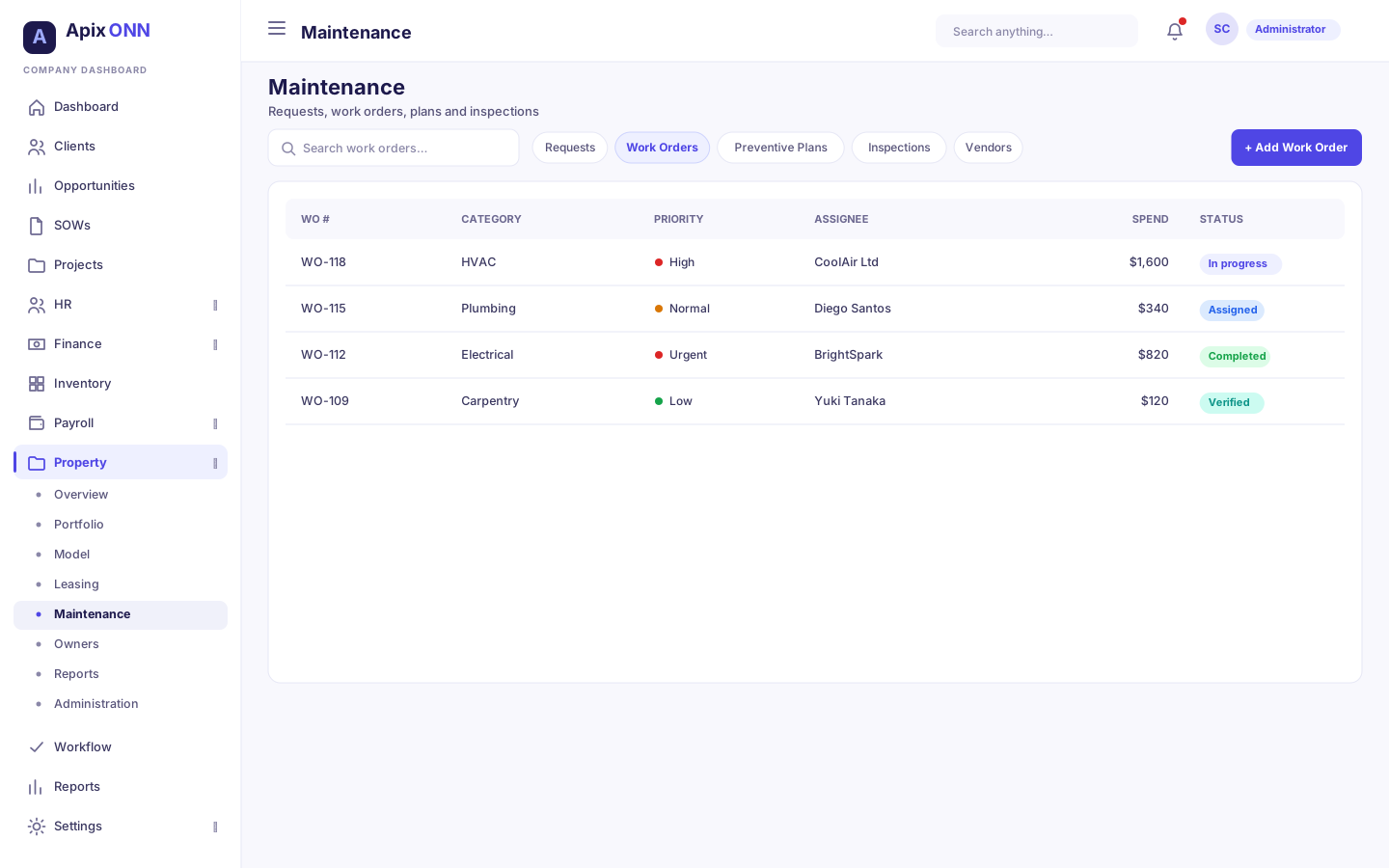
Requests turn into work orders, with preventive plans, inspections, and your vendor list alongside — five sub-tabs: Requests, Work Orders, Preventive Plans, Inspections, Vendors.
- Requests — a maintenance request has a priority (low → emergency), a category (plumbing, electrical, HVAC…), a unit, and an SLA indicator (On track / Breached). It moves through triage: Acknowledge → Triage → Resolve → Close, and can be put on Hold, Cancelled, or Rejected.
- Work Orders — the actual job. Assign it to an employee or a vendor; for vendor work, Approve spend (you set the vendor price and whether the cost is owner-borne or recoverable from the tenant), which raises a draft AP bill in Finance. Then Start → Complete → Verify → Close.
- Preventive Plans — recurring maintenance on a schedule (monthly, quarterly, annual…). Generate due creates work orders for every plan that's due.
- Inspections — move-in, move-out, periodic, safety, handover, snagging. Start → Complete (record defects), and Raise Work Order straight from a completed inspection that found defects.
- Vendors — your maintenance suppliers. These are the same vendor records as Finance, so approved vendors are ready to assign.
#Owners & settlements
Where to find it: Sidebar → Property → Owners
The owner side of the business — the assets you manage, who owns them, the management contract, and the money you owe owners. Five sub-tabs: Properties, Ownership, Management Agreements, Statements, Settlements.
- Properties — the managed assets with their operational status (operational, under construction, under renovation, vacant, disposed, inactive), area, title deed, and year built.
- Ownership — links owners to properties with an ownership % and start date. Statements attribute income by these shares.
- Management Agreements — your contract with an owner: scope (a property, node, or portfolio), a fee (a percentage or a fixed amount), settlement frequency, and dates. Agreements go Draft → Activate → Suspend/Terminate.
- Statements — an owner statement for a period. Generate it, Approve it, then Close period (any remaining balance carries into the owner's next statement). The View drill-down shows the full picture — opening balance carried in, rent collected, owner-borne expenses, your management fee, any reserve, and the net payable — with a lines table where every line traces back to its source Finance document. Statuses: draft, generated, approved, issued, settled, closed.
- Settlements — paying an owner what a statement says they're due. A settlement originates a draft AP bill in Finance; Finance's approve/pay does the actual payment. The AP Bill column links straight to that bill.
- Editing: click Edit to change a settlement's Notes at any time until it's paid. The Settlement Date can only change while its bill is still a draft in Finance. The amount can't be edited — cancel the settlement and create a new one.
- Deleting cancels it. Delete on a settlement cancels it rather than erasing it, so the record stays. A paid settlement can't be cancelled, and if its bill has already moved on in Finance, reverse the bill there first.
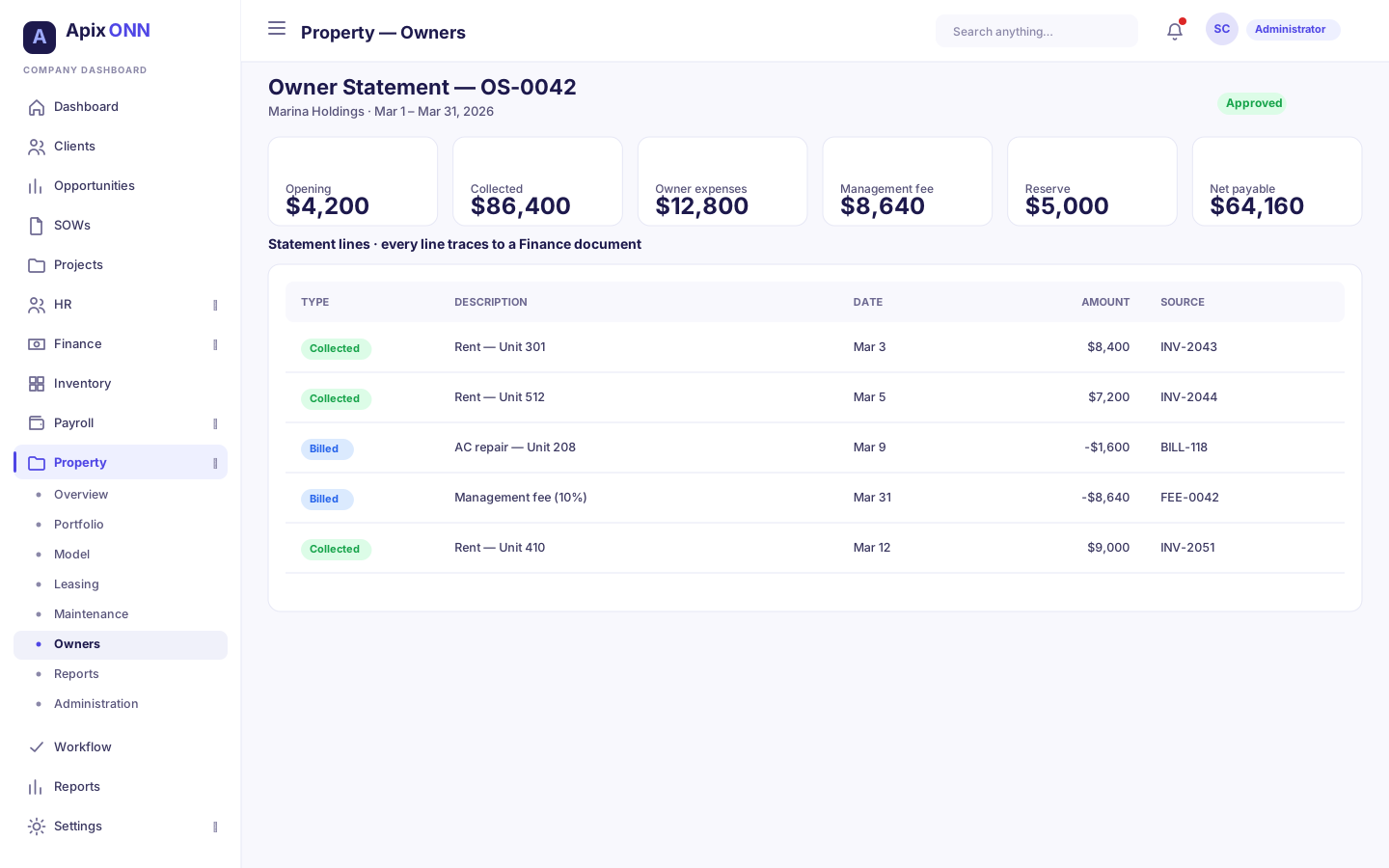
Note: Owner statements reconcile to Finance — the numbers come from posted, property-tagged transactions, so an owner statement and the ledger always agree.
#Reports
Where to find it: Sidebar → Property → Reports
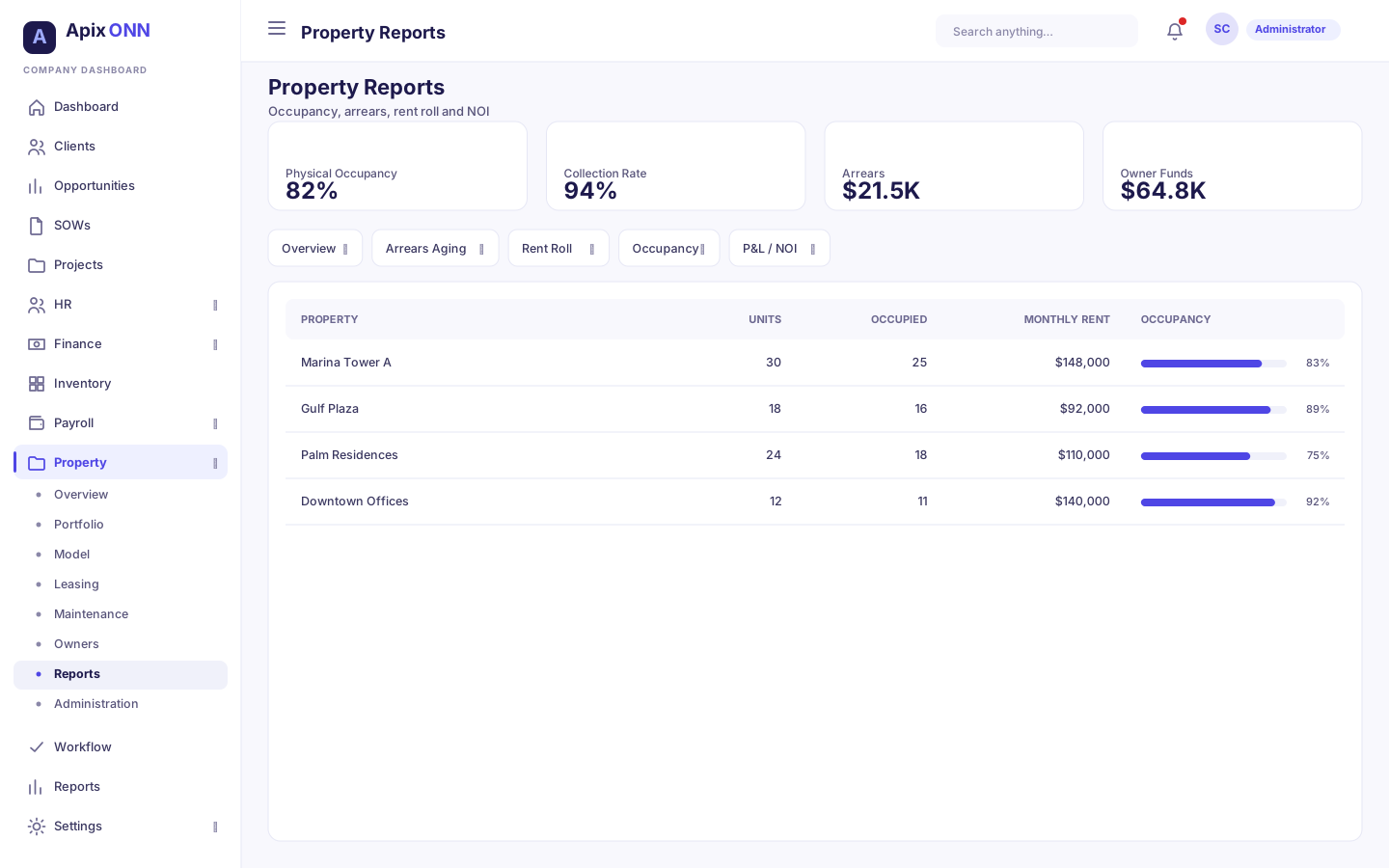
A set of read-only dashboards over your live data. Each shows an "as of" time, KPI tiles, and supporting tables:
| Report | What it answers |
|---|---|
| Action Center | The same "needs attention" list as the Overview. |
| Overview | Units managed, occupancy, active leases, billed vs collected rent, collection rate, arrears, owner funds. |
| Arrears Aging | Outstanding rent bucketed Current / 1–30 / 31–60 / 61–90 / 90+ days. |
| Rent Roll | Active leases and their monthly rent. |
| Occupancy | Physical and economic occupancy by property. |
| Owner Funds | What's available and pending settlement per owner. |
| P&L / NOI | Revenue, operating expenses, and net operating income by property. |
| Maintenance SLA | Response and resolution compliance, breaches, average times. |
| Maintenance Cost | Work-order cost, recoverable vs non-recoverable, by vendor / category / property. |
| Cheques (PDC) | Cheques on file, in custody, cleared, bounced, penalties, and due for deposit. |
| Lease Expirations | Leases expiring in the next 120 days. |
#Administration
Where to find it: Sidebar → Property → Administration
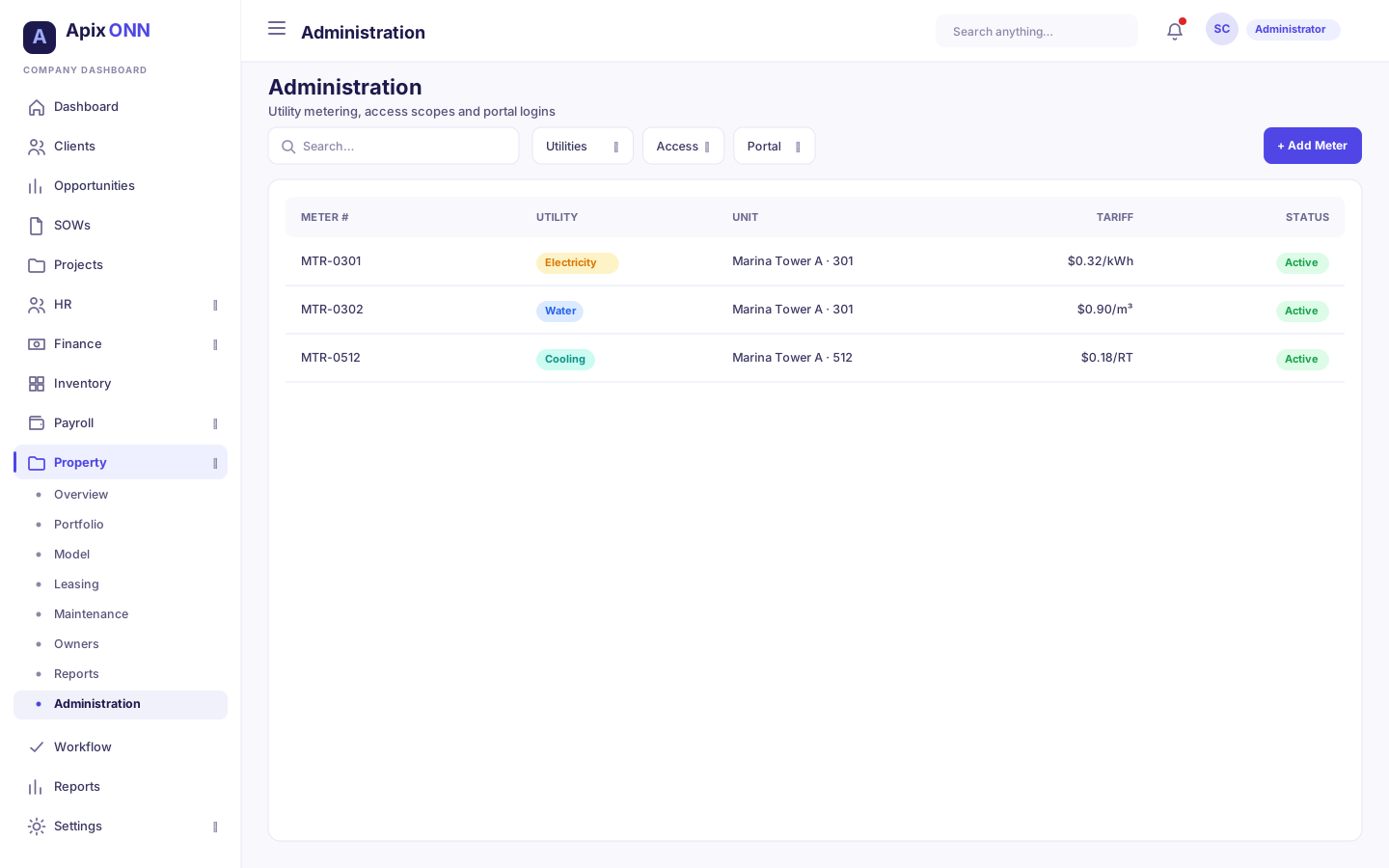
Module setup, in three sub-tabs:
- Utilities — Meters (electricity, water, gas, cooling) with their tariff and standing charge, and Readings. Recording a reading and pressing Bill unbilled drafts a recharge invoice for the consumption, routed to utility-recharge income.
- Correcting a reading: while a reading is unbilled, click Edit on it, fix the Current reading (or its date or notes), and Save. Its consumption and charge are recalculated, at the tariff that applied when it was first recorded.
- A billed reading can't be corrected until its invoice is reversed in Finance. A reading also can't change once a later reading exists for the same meter.
- Access — the property data-access scopes that decide which users can see which portfolio nodes (granting a node grants everything under it), with a read / manage / full profile and effective dates.
- Portal — tenant and owner portal logins: invite a tenant or owner by email, resend invites, and suspend or reactivate access.
#How Property connects to Finance
Property never posts to the ledger itself — it always hands Finance a draft to review:
| In Property, when you… | Finance receives a draft… |
|---|---|
| Generate Rent from charge schedules | AR invoice (draft) per due charge |
| Bill a utility meter reading | AR recharge invoice (draft) |
| Apply a deposit to an invoice | posts to the ledger; can relieve an invoice's receivable |
| Approve spend on a vendor work order | AP bill (draft) to the vendor |
| Settle an owner statement | AP bill (draft) to the owner |
In every case, Finance does the approving, posting, and paying — so accounting, approvals, and the audit trail all live in one place. Owner statements read straight from those posted transactions, which is why they always reconcile.
Tip: If a rent invoice, utility recharge, vendor bill, or owner settlement looks stuck, check Finance — Property has done its part by creating the draft; the next move is Finance reviewing and posting it.