Statements of Work (SOWs)
A Statement of Work records what you've agreed to deliver for a client — the title, value, period, and the scope, deliverables, and payment terms in plain language. SOWs sit between a won opportunity and the delivery work, giving you one contract record per engagement and a live view of how much signed business you have.
Company Dashboard5 min read5 sections
On this page5 sections
Read this first: SOWs are a contract register, not a document editor. You capture the agreement's key terms, and every SOW starts as a Draft. From there it moves through a light flow: submit for approval → send → sign. There's no SOW detail page; everything happens from the SOW's row, on the SOWs page or on the client's SOWs tab.
#The SOW list
Where to find it: Sidebar → SOWs
One screen holds everything: three summary cards, then a table of every statement of work across all clients.
#What you can do here
- See your contract position in the three cards: Active Contract Value (signed / active / completed SOWs), Pending Signature (sent or awaiting approval), and Total SOWs.
- Search by title, SOW number, or client.
- Filter by Status or Client.
- Create a SOW with + New SOW.
- Submit for approval, Send, and Sign a SOW (see the flow below).
- Edit or Delete a SOW.
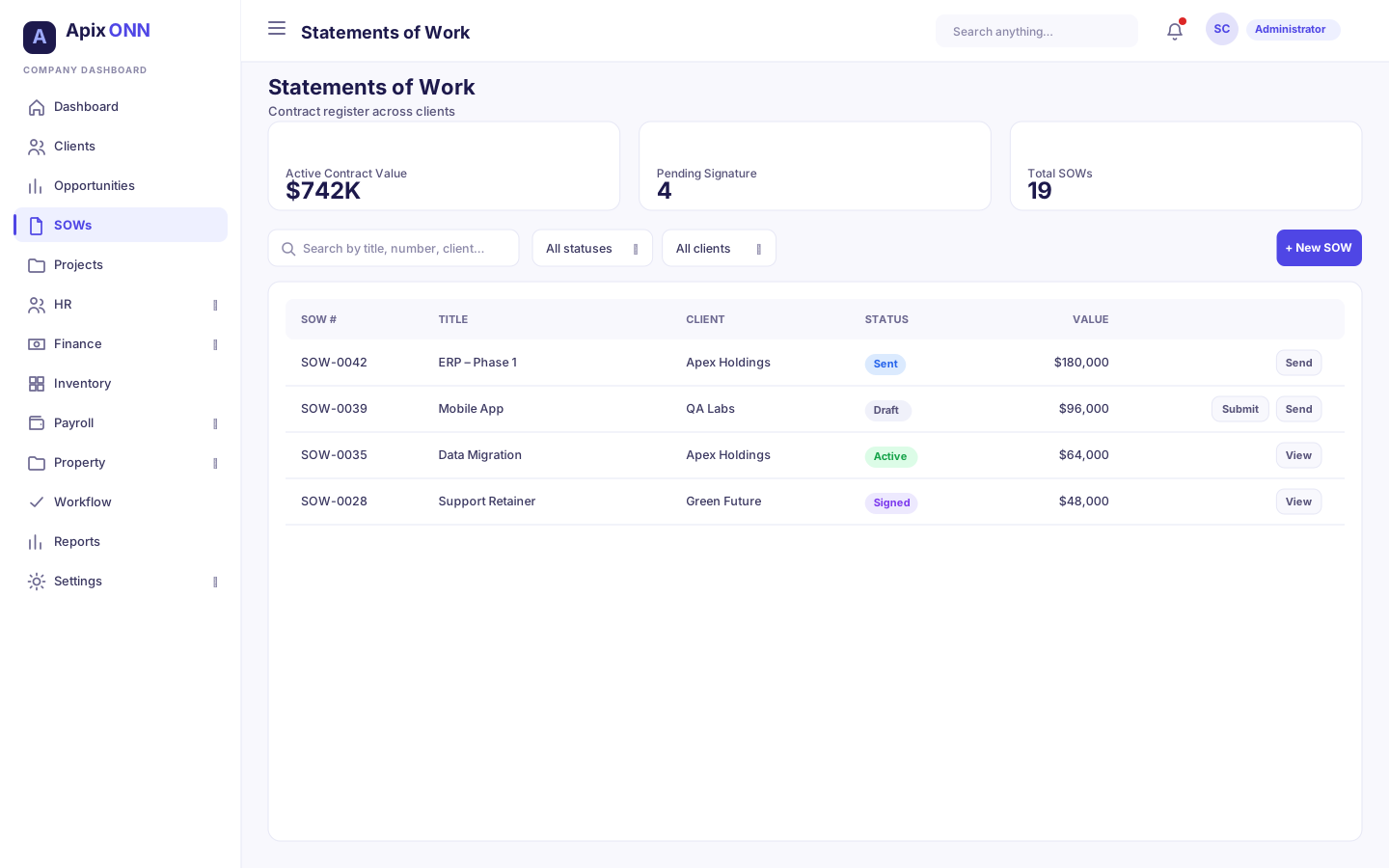
#Reading the table
| Column | What it shows |
|---|---|
| SOW # | The statement's number (generated for you). |
| Title | The SOW title, with "Signed by …" beneath when signed. |
| Client | The client — click through to their profile. |
| Status | A status badge (see below), plus an approval badge — Awaiting approval, Approved to send, or Approval rejected — when an approval is in play. |
| Value | The total value, in the SOW's own currency. |
| Period | The start → end dates. |
| Opportunity | The linked opportunity, if any. |
| Actions | Submit for approval, Send, Sign, Project, Edit, and Delete, depending on status and your role. |
Note: There's no SOW detail page — rows aren't clickable through to a full view. Everything you see about a SOW is what's in the list row (and the card on the client's SOWs tab). Keep titles and values clear because they're the main thing people read.
#Creating a SOW
Where to find it: SOWs → + New SOW (or New SOW on a client's SOWs tab)
The New Statement of Work form captures the whole agreement:
| Field | Notes |
|---|---|
| Client | Required. Search for it, or click + New to add one. (Pre-filled when you start from a client's profile.) |
| Linked Opportunity | Optional — pick one of that client's opportunities to tie the deal to the contract. |
| Title | Required, e.g. "ERP Implementation – Phase 1". |
| Total Value & Currency | The contract value, in any currency from the list. |
| Start Date / End Date | The engagement period (leave End blank for ongoing). |
| Description | A short summary. |
| Scope of Work | What you'll do. |
| Deliverables | What you'll produce. |
| Payment Terms | e.g. "Net 30", "50% upfront, milestone-based". |
Scope, Deliverables, and Payment Terms are free-text — write them as prose. There are no structured line items or milestone tables in a SOW.
Click Create SOW. A new SOW is always saved as a Draft — the create form has no Status field. From there you move it forward with the actions on its row.
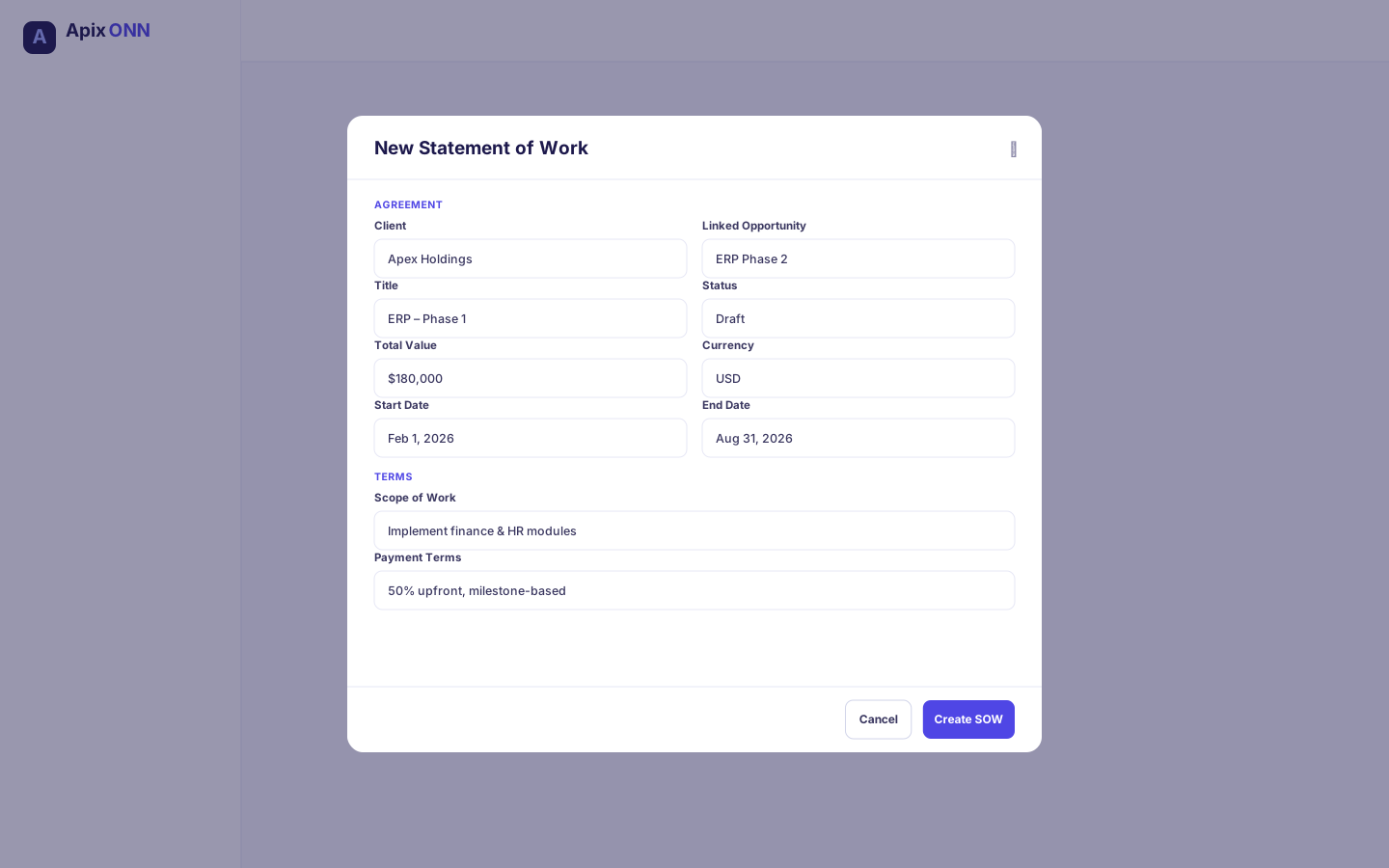
#How to edit a SOW
- Click Edit on the SOW's row.
- The Edit Statement of Work form has the same fields as the create form, plus Status. Change what you need.
- Click Save Changes.
The Status field only offers the moves that make sense from where the SOW is:
| Current status | You can set it to |
|---|---|
| Draft, Pending Approval, or Sent | Keep it as it is, or Cancelled. To move it forward, use the row actions (Submit for approval, Send, Sign). |
| Signed | Active, Completed, or Cancelled. |
| Active | Completed or Cancelled. |
Important: Delete asks you to confirm and is permanent. To call off a SOW but keep the record, set its status to Cancelled instead.
#The SOW flow: draft → submit → send → sign
The buttons that appear on a SOW row depend on where it is:
- Submit for approval (on Draft / Pending Approval, until it's approved) — sends the SOW into an internal approval gate that scales with value: small SOWs clear immediately, larger ones route to an approver in the Workflow Inbox. The approval badge shows Awaiting approval → Approved to send (or Approval rejected).
- Send (on Draft / Pending Approval) — you're asked for the client's recipient email, then the SOW is sent to them and becomes Sent. If it needs approval first, you'll see: "This SOW needs {level} approval before it can be sent. Submit it for approval first." — so submit, wait for approval, then send.
- Sign (on Sent) — records that the client has signed (see below). The SOW becomes Signed, and the row shows "Signed by …" under the title.
- Edit and Delete — available at any stage, if your role allows.
The same buttons appear on each SOW on the client's SOWs tab, so you can run the whole flow from the client's page.
Note: Sending asks for the recipient email in a simple browser prompt, and delete uses a browser confirmation — that's the intended, no-frills UX.
#How to record the client's signature
- On a Sent SOW, click Sign. The Record Client Signature dialog opens.
- Check Signed by. It's filled in with the client's primary contact (or their first contact, if none is marked primary). Pick another contact from the suggestions, or type any name.
- In Signature, type the signature exactly as signed.
- Tick The client has accepted and signed this statement of work.
- Click Mark as Signed.
ApixONN records the signer and the date you signed it. As the dialog notes, signing commits the engagement: a delivery project is created in Planning and goes through project approval. Once it exists, the SOW's Project button opens it.
#SOW statuses
| Status | What it means |
|---|---|
| Draft | Being prepared (the default for a new SOW). |
| Pending Approval | In the internal approval gate before it can be sent. |
| Sent | Issued to the client, awaiting their action. |
| Signed | The client has signed. |
| Active | In effect / delivery underway. |
| Completed | Delivery finished. |
| Cancelled | Called off. |
Note: Draft → Pending Approval → Sent → Signed is driven by the row actions (Submit for approval, Send, Sign). After that, set Active, Completed, or Cancelled by editing the SOW (see How to edit a SOW).
#How SOWs connect to the rest of ApixONN
- Clients — every SOW belongs to a client, appears on the client's SOWs tab (with all its actions), and links back to their profile. The client's primary contact is suggested as the signer.
- Opportunities — optionally link a SOW to one of the client's opportunities, so a won deal flows into a contract record. (The link is made from the SOW.)
- Approvals — larger SOWs route through the Workflow Inbox before they can be sent.
Tip: Use the Pending Signature card as your follow-up list — it counts SOWs that are sent or awaiting approval, i.e. the ones waiting on someone else to move.